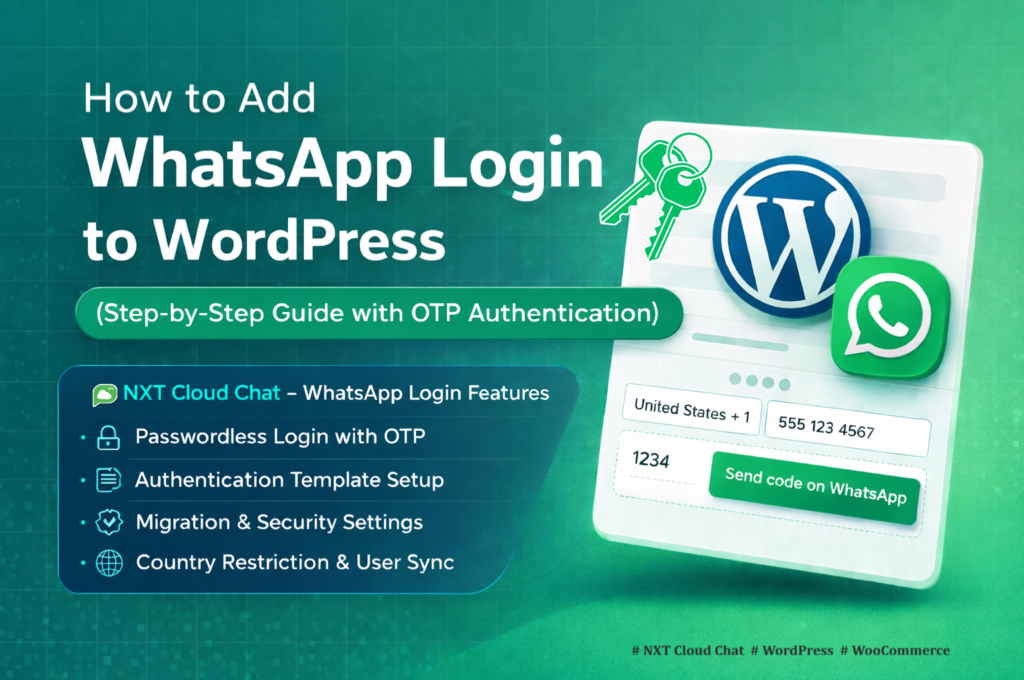
WhatsApp Login for WordPress lets users sign in with a one-time password (OTP) sent to their WhatsApp number instead of typing a traditional password. It is a faster, mobile-friendly login flow for WordPress, WooCommerce, membership sites, customer portals, and online stores that want verified users with less friction.
With NXT Cloud Chat, you can add WhatsApp OTP login to WordPress using the official WhatsApp Cloud API, manage authentication settings from your WordPress dashboard, show WhatsApp login buttons on WordPress and WooCommerce login pages, and optionally require verified login for Cash on Delivery orders.
In this complete setup guide, you will learn how to add WhatsApp login to WordPress, configure OTP templates, publish a dedicated login page, control fallback sign-in behavior, enable WooCommerce My Account login, and use the latest NXT Cloud Chat authentication features safely.
Before you start, your WordPress website must be connected to the official WhatsApp Cloud API. If you have not connected it yet, follow the step-by-step guide here: how to integrate WhatsApp Cloud API with WordPress.
What Is WhatsApp Login for WordPress?
WhatsApp login is a passwordless authentication method where a user enters a mobile number, receives an OTP on WhatsApp, verifies the code, and is signed in to WordPress. The user does not need to remember a password, reset a password, or wait for an email OTP.
- Users log in with a WhatsApp OTP instead of a password.
- Verified users can be linked to their WordPress account and WhatsApp number.
- New users can be created automatically after successful verification.
- WooCommerce customers can sign in from the My Account login page.
- Store owners can require verified login before accepting COD orders.
Latest WhatsApp Login Features in NXT Cloud Chat
NXT Cloud Chat has grown from a simple WhatsApp login tool into a WordPress-native WhatsApp CRM with authentication, inbox, contacts, tickets, groups, tags, team access, sales pipelines, and developer-friendly wrappers. For WhatsApp login, the latest setup includes:
- Dedicated WhatsApp login page using the shortcode
- WhatsApp login buttons for the default WordPress login page.
- WooCommerce My Account login button for customer sign-in.
- Force migration from password login to WhatsApp verification for existing users.
- Optional password fallback with the customer-friendly label “Try another sign-in method”.
- Default WordPress login redirect to your dedicated WhatsApp login page when password fallback is hidden.
- COD order verification so unverified WooCommerce customers can be asked to verify before placing Cash on Delivery orders.
- Allowed country controls for restricting where WhatsApp login can be used.
- Terms and Privacy links inside the login widget.
- Connection health status from the dashboard so you can confirm your WhatsApp Cloud API setup.
Pre-Requisites Checklist
To use WhatsApp Login for WordPress, you need a working WhatsApp Cloud API connection. Prepare these details before configuring the plugin:
- Meta Business Manager account
- WhatsApp Business account connected to the Cloud API
- Meta App ID
- Meta App Secret
- Access Token
- Phone Number ID
- Business Account ID
- An approved WhatsApp authentication template for OTP messages
The webhook is mainly needed for receiving inbound messages, delivery status updates, and full inbox features. WhatsApp login itself depends on your Cloud API credentials and an approved authentication template.
Step 1: Install and Connect NXT Cloud Chat
Install and activate NXT Cloud Chat – CRM, Inbox & OTP Login from your WordPress dashboard.
- Go to Plugins > Add New.
- Search for NXT Cloud Chat.
- Install and activate the plugin.
- Open NXT Cloud Chat > Settings > Connection.
- Enter your Meta App ID, App Secret, Access Token, Phone Number ID, and Business Account ID.
- Save the settings and check the dashboard connection status.
The free dashboard shows your connection basics and Messaging and Calling Health Status, helping you identify missing credentials or Meta-side health warnings before you test OTP login.
Need help with the first connection? Use the step-by-step setup guide or request setup help from the support link inside the plugin.
Step 2: Create a WhatsApp Login Page
Create a public page where users can enter their WhatsApp number and verify the OTP.
- Go to Pages > Add New.
- Create a page such as Login with WhatsApp.
- Add the NXT Cloud Chat WhatsApp Login block, or use the shortcode below.
- Publish the page.
- Copy the page URL into the Authentication settings as your dedicated user login page.
Gutenberg block:
NXTCC: WhatsApp LoginShortcode:
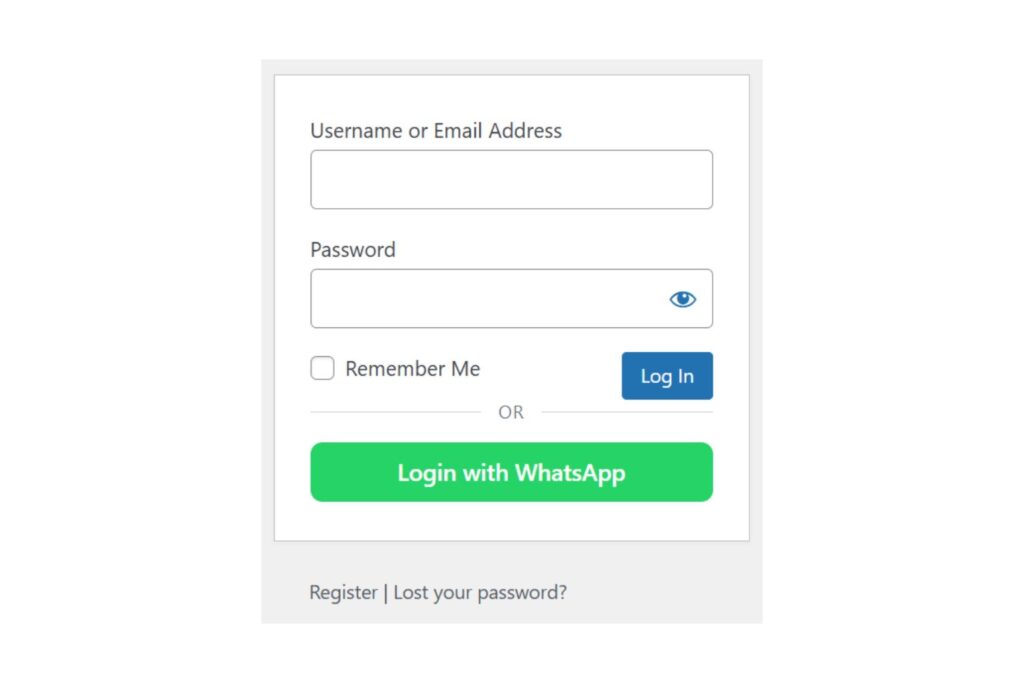
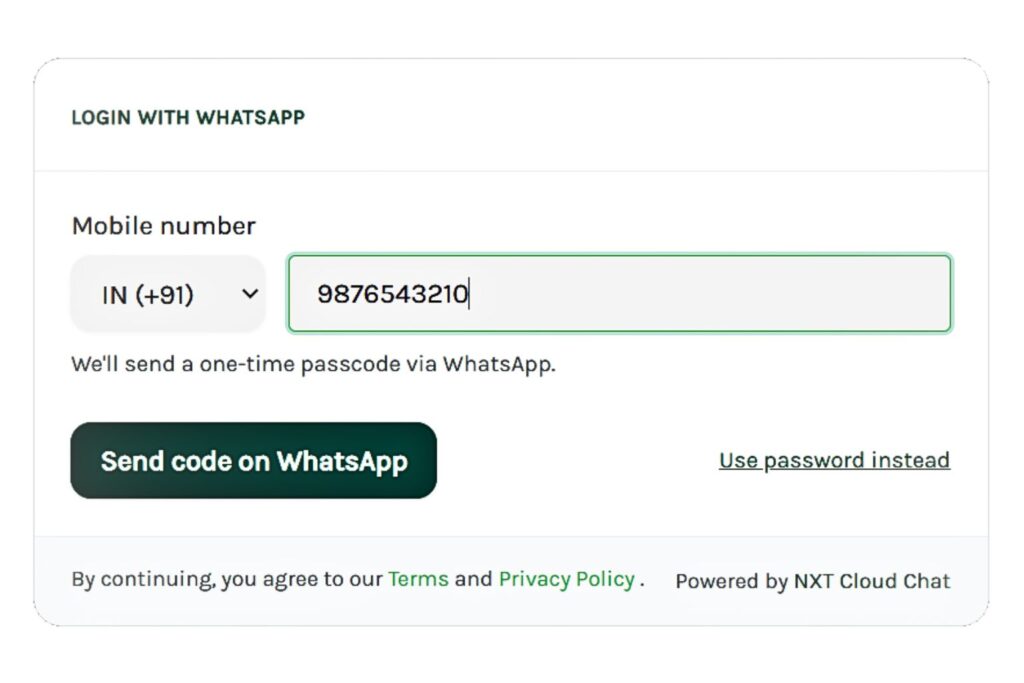
The login widget includes country selection, mobile number input, OTP verification, optional fallback sign-in, Terms and Privacy links, and clean frontend branding.
Step 3: Configure the WhatsApp OTP Template
WhatsApp OTP messages must use an approved authentication template from your WhatsApp Business account. NXT Cloud Chat helps you connect the correct template to your login flow.
- Open NXT Cloud Chat > Authentication.
- Select the WhatsApp profile that should send OTP messages.
- Choose an approved authentication template if one already exists.
- If no OTP template is available, use the Generate option to create a default authentication template and submit it for Meta approval.
- Save the Authentication settings after the template is selected.
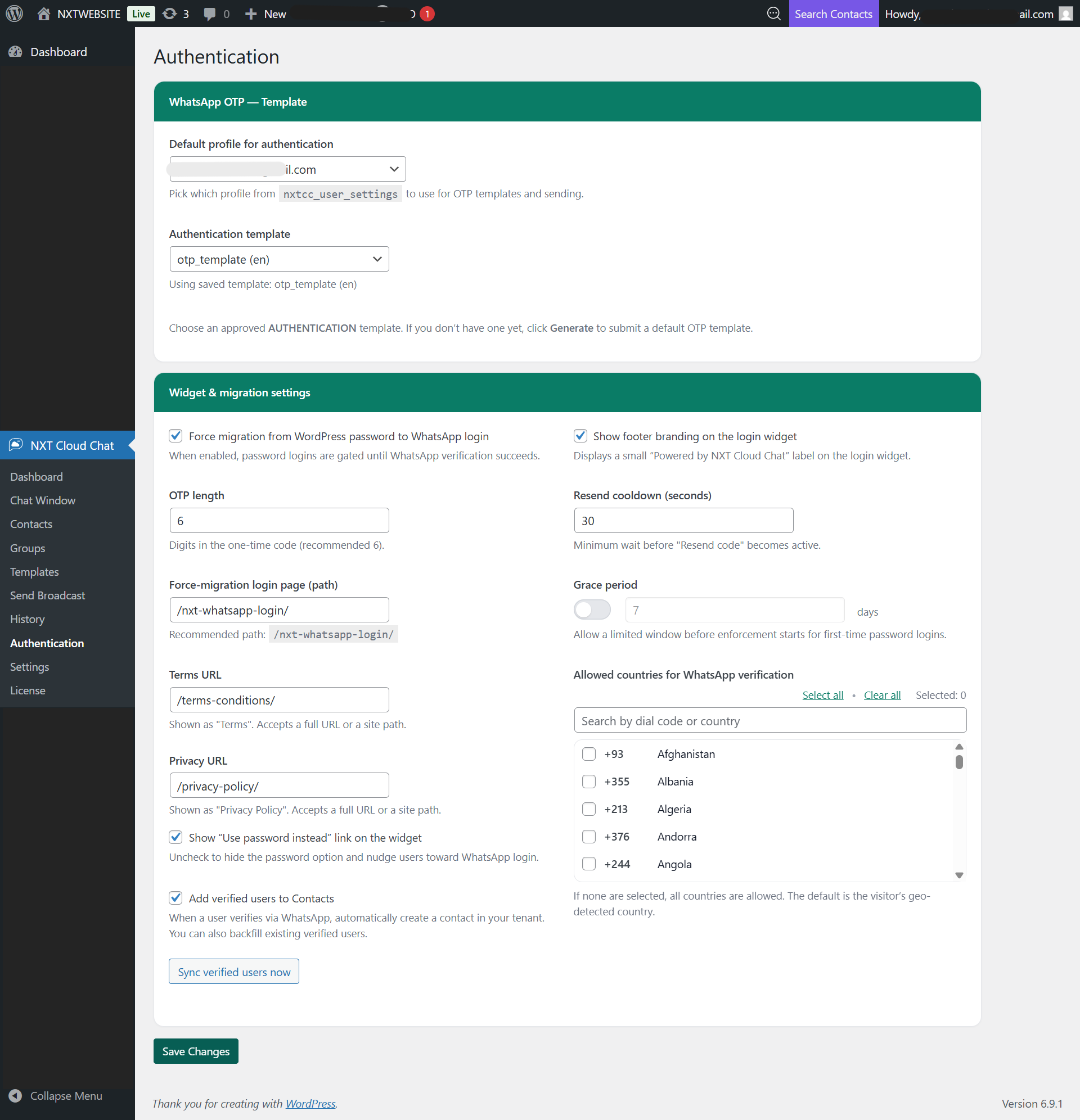
For best results, test the login with a real WhatsApp number after the template is approved and your Cloud API connection is healthy.
Step 4: Set Widget and Migration Settings
The Widget & migration settings area controls how users move from normal WordPress login to WhatsApp verification.
Force Migration from Password Login
Enable Force migration from WordPress password to WhatsApp login if you want existing users to verify their WhatsApp number before continuing with normal site access. This is useful for membership sites, customer portals, WooCommerce stores, and sites that want stronger phone-number identity.
/nxt-whatsapp-login/The default force-migration path is /nxt-whatsapp-login/. You can keep the recommended path or customize it in the Authentication settings.
Dedicated User Login Page
Add your WhatsApp login page URL or path in the Dedicated user login page setting. This helps the plugin know where to send users when they need to complete WhatsApp verification.
Try Another Sign-In Method
If you want users to keep a password option, enable the Try another sign-in method link on the widget. If you want a WhatsApp-first login flow, disable it so users are guided toward OTP verification.
Redirect the Default WordPress Login Page
When password fallback is hidden, you can redirect the default WordPress login page to your dedicated WhatsApp login page. This keeps the user experience consistent and avoids sending customers to the old password form.
Login Placements
NXT Cloud Chat can show WhatsApp login entry buttons in important places:
- WordPress default login page
- WooCommerce My Account login page
- Any custom page where you place the WhatsApp Login block or shortcode
OTP Length and Cooldown
You can choose the OTP length from 4 to 8 digits. A 6-digit OTP is recommended for a balanced mix of usability and security. The resend cooldown helps prevent repeated OTP requests and reduces unnecessary message sends.
Country Restrictions, Terms, and Privacy
If your business serves selected regions, restrict login to allowed countries. You can also add Terms and Privacy URLs so users can review your policies before continuing.
Step 5: Enable WooCommerce WhatsApp Login
If WooCommerce is active, NXT Cloud Chat can add a WhatsApp login button to the WooCommerce My Account login form. This is useful for stores where customers often use mobile numbers more than email passwords.
- Go to NXT Cloud Chat > Authentication.
- Find Login placements.
- Enable Show WhatsApp button on WooCommerce login page.
- Save the settings.
- Test the My Account page in a private browser window.
After verification, the customer is linked to their WhatsApp number for future login. This also helps your CRM because verified users can become clearer customer records inside the NXT Cloud Chat contacts system.
Step 6: Require Verified Login for COD Orders
Cash on Delivery orders can create extra risk when customer contact details are incomplete or unreachable. NXT Cloud Chat includes an option to require a verified WhatsApp login before an unverified customer can place a COD order.
- Open NXT Cloud Chat > Authentication.
- Enable Require verified login for WooCommerce COD orders.
- Save the settings.
- Test checkout with Cash on Delivery selected.
If the user is not verified, the plugin can guide the customer to WhatsApp verification and return them to checkout after successful OTP verification. This helps stores improve customer reachability before accepting COD orders.
How WhatsApp Login Works for Users
- The user opens your WhatsApp login page, WordPress login page, or WooCommerce My Account page.
- The user selects a country code and enters a mobile number.
- NXT Cloud Chat sends an OTP through the official WhatsApp Cloud API.
- The user enters the OTP on your site.
- The plugin verifies the OTP and completes login.
- The verified WhatsApp number is linked to the WordPress user for future login.
How WordPress Handles New WhatsApp Login Users
If a new visitor logs in with WhatsApp and no matching WordPress user exists, WordPress still needs a user account. NXT Cloud Chat can create the WordPress user after successful verification and link that user to the verified WhatsApp number.
If an email address is not available during first login, the plugin can use a temporary email pattern based on the phone number and your site domain. The user can later update their email address from the profile or account area.
91XXXXXXXXXX@yourdomain.comSecurity and Privacy Best Practices
WhatsApp OTP login improves convenience, but your setup should still follow good authentication and privacy practices.
- Use the official WhatsApp Cloud API connection only.
- Keep your Meta App Secret and Access Token private.
- Use a 6-digit OTP unless your policy requires a different length.
- Set a resend cooldown to reduce repeated OTP requests.
- Add Terms and Privacy links to the login widget.
- Restrict countries if your site serves only specific regions.
- Test the full login flow after changing templates, access tokens, or phone number settings.
NXT Cloud Chat keeps CRM data, contacts, tickets, and message history inside your WordPress database. The plugin communicates with Meta only for the WhatsApp Cloud API operations you configure, such as OTP messages, inbox messages, templates, media, and webhooks.
Troubleshooting WhatsApp Login Setup
OTP Is Not Sending
- Check that the WhatsApp Cloud API connection is saved correctly.
- Confirm that the selected authentication template is approved.
- Check your Phone Number ID and Business Account ID.
- Review the dashboard Messaging and Calling Health Status.
Users Still See the Password Login Form
- Disable the “Try another sign-in method” option if you want WhatsApp-only login.
- Enable the setting that redirects the default WordPress login page to your dedicated user login page.
- Make sure your dedicated login page URL is saved correctly.
WooCommerce Login Button Is Not Showing
- Confirm that WooCommerce is active.
- Enable the WooCommerce login placement in Authentication settings.
- Clear cache and test the My Account page while logged out.
COD Customers Are Not Being Asked to Verify
- Enable Require verified login for WooCommerce COD orders.
- Test with a logged-in user who has not completed WhatsApp verification.
- Make sure the selected payment method is Cash on Delivery.
Why Use NXT Cloud Chat for WhatsApp Login?
NXT Cloud Chat is more than a login plugin. It connects WordPress to the official WhatsApp Cloud API and gives your site a WhatsApp CRM layer around contacts, inbox messages, tickets, teams, tags, groups, lifecycle stages, tasks, and sales pipelines.
- Official WhatsApp Cloud API connection
- Passwordless WhatsApp OTP login
- WordPress and WooCommerce login page support
- Dedicated login page shortcode and block
- Force migration for existing users
- COD verification option for WooCommerce stores
- Contacts, groups, tags, tickets, assignments, and CRM history
- Pro add-on support for templates, broadcasts, workflows, abandoned carts, segments, and automation analytics
Explore the plugin here: NXT Cloud Chat.
Final Thoughts
Adding WhatsApp login to WordPress can make authentication faster, simpler, and more familiar for mobile-first users. It reduces password friction, helps verify real customer phone numbers, and improves the login experience for WooCommerce stores, membership sites, service portals, and customer dashboards.
With NXT Cloud Chat, you can start with WhatsApp OTP login and later expand into a full WordPress-based WhatsApp CRM with contacts, inbox, tickets, automation, broadcasts, and WooCommerce workflows.
Frequently Asked Questions
What is WhatsApp Login for WordPress?
WhatsApp Login for WordPress is a passwordless login method where users receive a one-time password on WhatsApp and use it to sign in to your WordPress site.
Do I need the official WhatsApp Cloud API to use WhatsApp login?
Yes. NXT Cloud Chat sends OTP messages through the official WhatsApp Cloud API, so you need a connected Meta app, WhatsApp Business account, Phone Number ID, Business Account ID, and access token.
Can I add WhatsApp login to WooCommerce My Account?
Yes. NXT Cloud Chat can show a WhatsApp login button on the WooCommerce My Account login page when WooCommerce is active and the login placement is enabled.
Can I force existing users to verify with WhatsApp?
Yes. The force migration option can gate password logins until the user completes WhatsApp verification on your configured force-migration login page.
Can I hide the password fallback option?
Yes. You can hide the “Try another sign-in method” link to make the widget more WhatsApp-first. When password fallback is hidden, you can also redirect the default WordPress login page to your dedicated WhatsApp login page.
Does WhatsApp login help with Cash on Delivery verification?
Yes. WooCommerce stores can enable verified login for COD orders so unverified customers are asked to complete WhatsApp verification before placing a Cash on Delivery order.
What OTP length is recommended?
NXT Cloud Chat supports OTP lengths from 4 to 8 digits. A 6-digit OTP is generally recommended because it balances security and ease of use.
Do I need a webhook for WhatsApp Login?
A webhook is mainly used for inbound messages, delivery receipts, read receipts, and inbox features. WhatsApp login primarily needs a healthy Cloud API connection and an approved authentication template.
Can I restrict WhatsApp login by country?
Yes. You can configure allowed countries so only users from selected country codes can use WhatsApp login on your WordPress site.
What happens when a new user logs in with WhatsApp?
After successful OTP verification, NXT Cloud Chat can create a WordPress user and link the verified WhatsApp number to that account. If an email is not available, a temporary email pattern can be used and updated later.
Can I use only WhatsApp OTP login without using the CRM inbox?
Yes. You can use NXT Cloud Chat only for WhatsApp OTP login. The inbox, CRM, tickets, contacts, deals, and automation features are available when you want to use them, but they are not required for a basic login setup.