Want to connect your WordPress website directly to the official WhatsApp Cloud API? This complete guide explains the setup in a simplified, SEO-focused way so you can understand the process, prepare the right requirements, and connect WordPress to WhatsApp with long-term control.
Unlike many third-party tools, a direct WhatsApp Cloud API integration allows your WordPress website to communicate with Meta’s official infrastructure. Using NXT Cloud Chat, you can build a self-hosted WhatsApp system inside WordPress with better control, no third-party data storage, and a familiar admin workflow.
If you want the full technical walkthrough with detailed screenshots for every step, you can follow the complete NXT Cloud Chat user guide. This guide provides a simplified overview to help you understand the setup and get started quickly.
What Is WhatsApp Cloud API?
WhatsApp Cloud API is Meta’s official business messaging solution that allows websites and applications to send and receive WhatsApp messages programmatically. When connected to WordPress, it helps you manage customer conversations, notifications, templates, and login workflows directly from your own website.
- Send and receive WhatsApp messages
- Use approved message templates
- Run messaging workflows from WordPress
- Enable secure WhatsApp-based user login
- Keep your data inside your own WordPress environment
Why Connect WhatsApp Cloud API to WordPress?
Connecting WhatsApp Cloud API to WordPress gives businesses a practical way to manage communication without depending on external dashboards for everyday work. Instead of jumping between multiple tools, you can manage WhatsApp inside WordPress using a familiar admin interface.
- Reply to customers from the WordPress dashboard
- Organize contacts and groups
- Send approved WhatsApp templates
- Support WooCommerce customer communication
- Enable WhatsApp OTP login for users
- Maintain full ownership of chats and contacts
What You Will Learn in This Guide
- What is required before starting the setup
- How to create a Meta app for WhatsApp Cloud API
- Which API credentials you need
- How to connect the plugin to WordPress
- How webhooks work for incoming messages
- How to test the integration after setup
Step 1: Prepare the Requirements
Before you start, make sure you have everything required for a successful WhatsApp Cloud API setup.
- Meta Developer Account for creating the app
- Facebook Business Manager access for managing your business assets
- A valid phone number that is not currently active on a personal WhatsApp account
- Your live WordPress website
- Valid business details and documents for Meta business verification, when required
- A valid payment method such as a credit card or another supported billing method as per Meta policies
Important: WhatsApp Cloud API may require business verification and billing setup for full access, production messaging, and higher messaging limits.
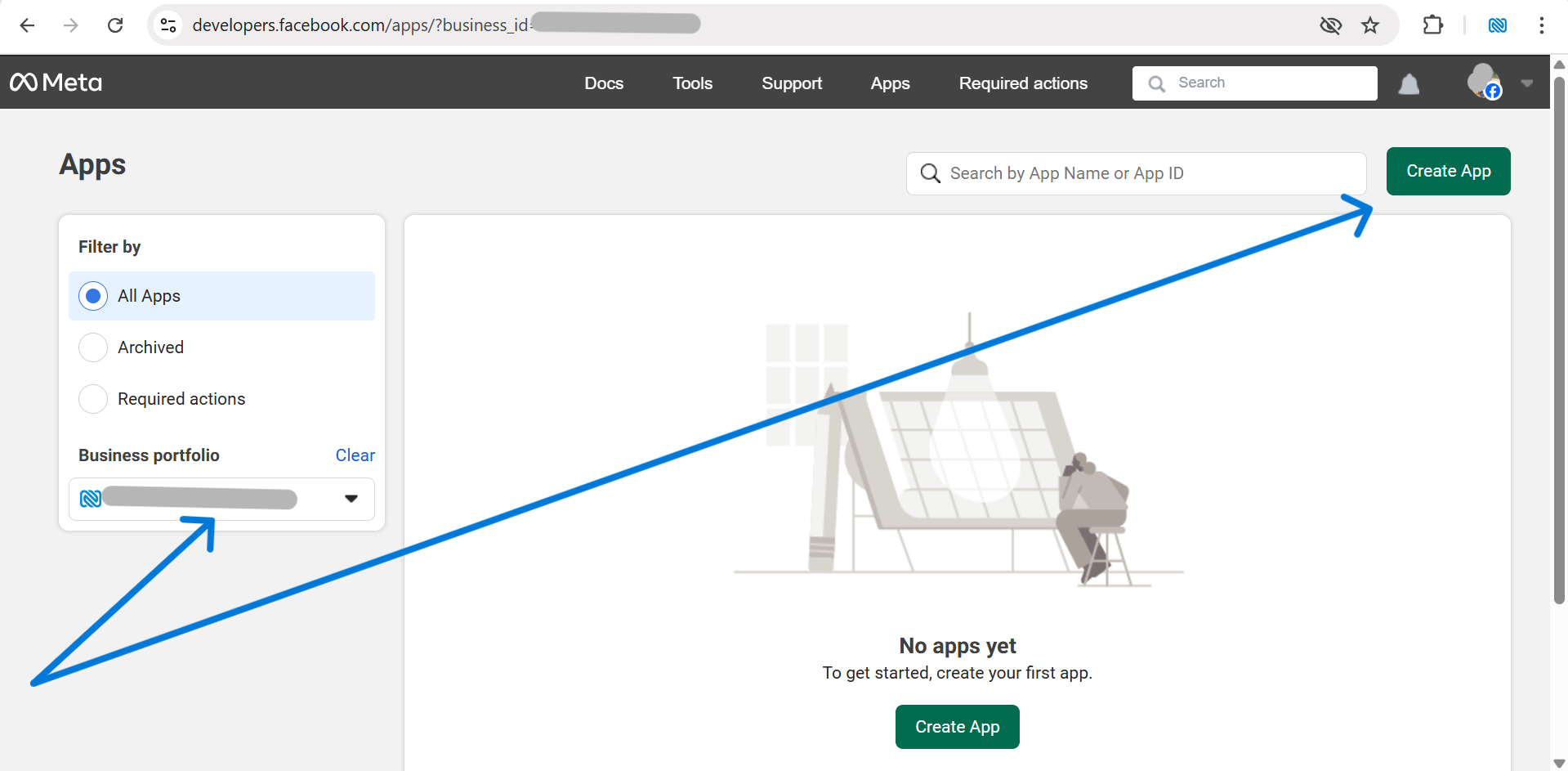
Step 2: Create a WhatsApp Cloud API App in Meta
Go to the Meta Developer Dashboard and create a new app for your business. Add the WhatsApp product to the app, then begin the API setup process.
This is the step where your business identity, WhatsApp number, and API access are connected under Meta’s official infrastructure.
- Create a new Meta app
- Select the appropriate business-oriented app flow
- Add the WhatsApp product
- Start the API setup process
- Add and verify your WhatsApp Business phone number
Step 3: Collect the Required API Credentials
After your app and phone number are configured, Meta provides the values needed to connect WordPress to the WhatsApp Cloud API.
- App ID
- App Secret
- Access Token
- Phone Number ID
- WhatsApp Business Account ID
These credentials are entered into your WordPress plugin settings so your website can communicate directly with the WhatsApp Cloud API.
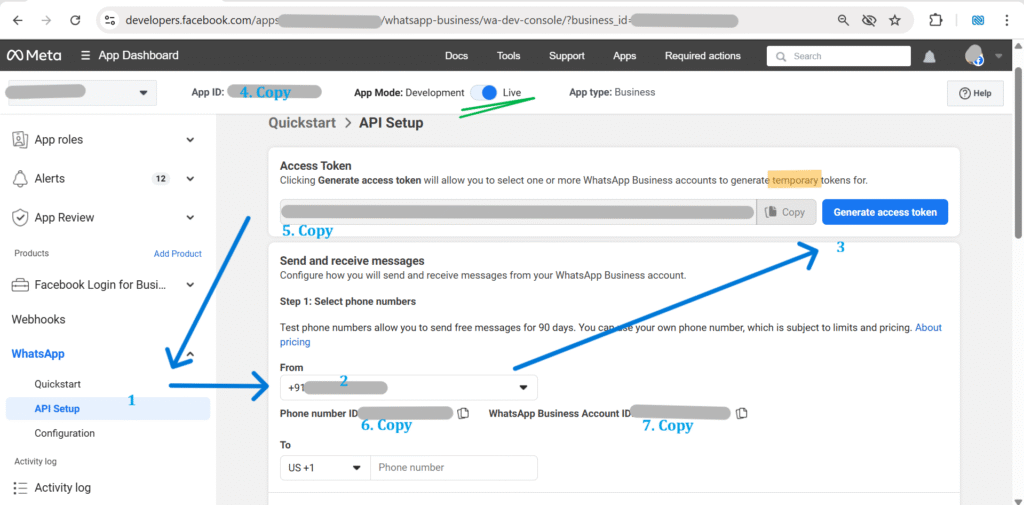
For production use, a permanent access token is generally recommended instead of relying only on temporary test tokens.
Step 4: Connect WordPress to WhatsApp Cloud API
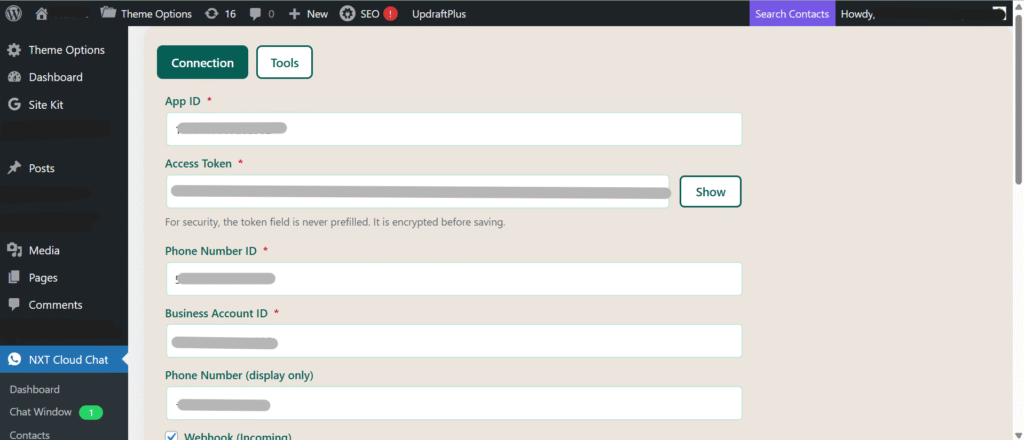
Install and activate NXT Cloud Chat in WordPress, then open the plugin settings and paste the required API details. You can also explore the plugin overview on the NXT Cloud Chat homepage.
- App ID
- App Secret
- Access Token
- Phone Number ID
- WhatsApp Business Account ID
After saving the settings, WordPress is connected to the WhatsApp Cloud API. At this stage, your website can validate the connection and prepare for real-time message handling.
Step 5: Configure Webhooks for Incoming Messages
Webhooks allow your WordPress website to receive incoming WhatsApp events in real time. Without webhook configuration, you may be able to connect the API, but incoming messages will not appear properly inside the dashboard.
- Copy the callback URL from the plugin
- Copy the verify token from the plugin
- Paste both values into Meta webhook settings
- Verify the webhook
- Subscribe to the messages field
Once webhook verification succeeds, incoming messages can sync into the WordPress chat interface.
Step 6: Test the Connection
After the API connection and webhook setup are complete, test the system by sending a message from your phone to the registered WhatsApp Business number.
- Open WhatsApp on your phone
- Send a message to your business number
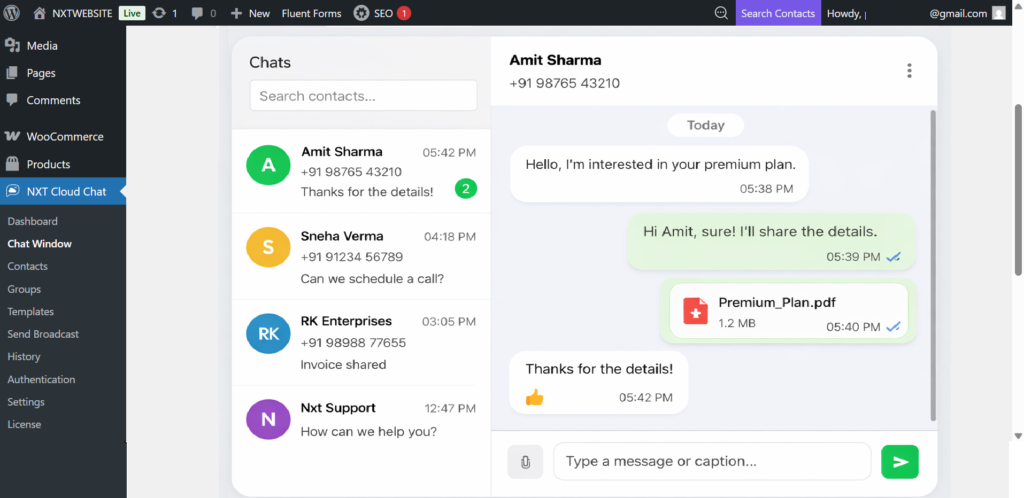
- Open the WordPress chat window
- Check whether the incoming message appears
- Reply from WordPress to confirm the connection works correctly
Understanding the 24-Hour Messaging Rule
WhatsApp allows free-form replies within a 24-hour customer service window after the user sends a message first. Outside that window, only approved template messages can be sent.
This is an official WhatsApp policy and applies regardless of which plugin or system you use.
- Inside 24 hours: free-form replies are allowed
- Outside 24 hours: use approved templates
What You Can Do After Setup
Once WordPress is connected to the WhatsApp Cloud API, you can use the integration for multiple practical workflows.
- Send and receive WhatsApp messages
- Manage contacts and groups inside WordPress
- Send approved template messages
- Support WooCommerce customer communication
- Enable secure WhatsApp OTP login
- Run broadcast campaigns with approved templates
If you want to enable password-free user authentication, also read our guide on how to add WhatsApp login to WordPress.
Detailed Setup Guide with Screenshots
This article is designed as your main SEO guide and setup overview. For the full step-by-step technical walkthrough with screenshots for each Meta and plugin screen, follow the detailed documentation below.
Open the complete NXT Cloud Chat user guide
Frequently Asked Questions (Before You Start)
Do I need a new phone number for WhatsApp Cloud API?
Not always. You can reuse an existing number if it is no longer active on personal WhatsApp. However, many businesses prefer using a dedicated number for cleaner support, branding, and account management.
Can I use my existing personal WhatsApp number for WhatsApp Cloud API?
Yes, but the number must not remain active on the personal WhatsApp app. If you want to reuse your existing number, you must first remove or delete that personal WhatsApp account before using the number for WhatsApp Cloud API.
What business documents are required for WhatsApp Cloud API?
Meta may request business verification details depending on your country, account status, and intended usage. This can include your legal business name, address, website, and official registration documents. Check Meta’s official business verification requirements for the most accurate details.
Do I need to complete business verification?
Yes, business verification is commonly required for production use, higher messaging limits, and full access to WhatsApp Cloud API features. Without it, your account may remain restricted.
Do I need to add a payment method?
Yes. WhatsApp Cloud API uses Meta’s official conversation-based pricing model. For production messaging, you generally need a valid payment method such as a credit card or another supported billing method according to Meta’s policies.
Does NXT Cloud Chat charge per message or add markup over Meta charges?
No. NXT Cloud Chat does not add per-message markup charges over Meta pricing. Your WhatsApp messaging charges come directly from Meta’s official WhatsApp Cloud API pricing, unlike some third-party platforms that may add extra usage markups.
Are there any hidden WhatsApp usage costs in NXT Cloud Chat?
No. NXT Cloud Chat is a self-hosted WordPress plugin. It does not add hidden usage fees to Meta messaging charges. You only pay Meta according to the official WhatsApp Cloud API pricing model.
Why are my WhatsApp messages not sending?
Common reasons include incomplete business verification, missing billing setup, expired or incorrect tokens, the app not being in LIVE mode, or WhatsApp’s 24-hour messaging rule. Check each of these before troubleshooting deeper.
What is the 24-hour messaging rule in WhatsApp Cloud API?
You can send free-form replies only within 24 hours after the user sends a message first. After that window closes, only approved template messages can be sent until the user reopens the conversation.
Do I need coding knowledge to connect WordPress to WhatsApp Cloud API?
No. With a plugin like NXT Cloud Chat, most of the setup can be completed without writing custom code. You mainly need the correct Meta configuration, API credentials, and webhook setup.
Is my data stored on third-party servers when I use NXT Cloud Chat?
No. NXT Cloud Chat is designed as a self-hosted WordPress solution. Chats, contacts, and related data are stored inside your own WordPress environment instead of on a separate third-party SaaS dashboard.
Do you provide setup support for WhatsApp Cloud API integration?
Yes. Our support team is available to help you with setup guidance and troubleshooting.
Where can I find the full screenshot-based setup guide?
You can follow the full screenshot-based setup guide here:
Conclusion
Connecting WordPress to WhatsApp Cloud API gives your business a secure and scalable communication system inside your own website. With the right setup, you can manage chats, templates, customer communication, and login workflows directly from WordPress while keeping full control over your data.
If you are ready to move forward, start with the official setup requirements, connect your Meta app, configure the plugin, and use the detailed user guide whenever you need the complete screenshot-by-screenshot walkthrough.