WhatsApp Login for WordPress lets users sign in with a one-time password sent to their WhatsApp number. Instead of remembering a password or waiting for an email OTP, customers can verify their mobile number through WhatsApp and continue to your WordPress site, WooCommerce store, membership area, or customer portal.
With NXT Cloud Chat, you can add WhatsApp OTP login to WordPress using the official WhatsApp Cloud API. You can show WhatsApp login buttons, create a dedicated login page, support WooCommerce My Account login, keep another sign-in method available, and optionally require verified login before WooCommerce Cash on Delivery orders continue.
This complete setup guide explains how WhatsApp login works, what you need before setup, how to configure NXT Cloud Chat authentication settings, and how to test the login flow safely.
What Is WhatsApp Login for WordPress?
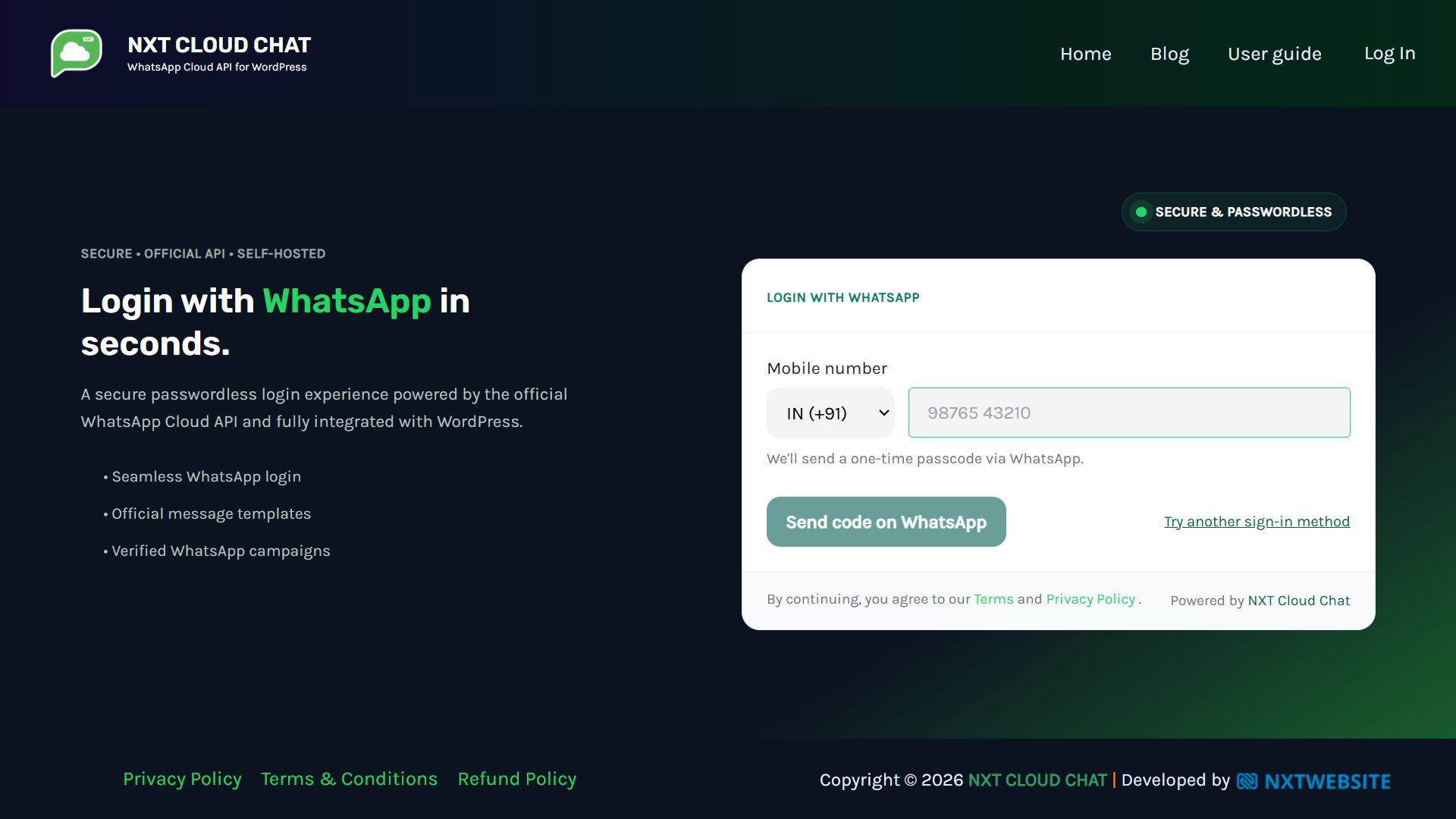
WhatsApp login is a passwordless sign-in method. A user enters a phone number, receives an OTP on WhatsApp, enters the code on your website, and is logged in after successful verification.
For WordPress and WooCommerce, this can reduce login friction because customers do not need to remember a password or search their email inbox. It is especially useful for mobile-first stores, COD verification, customer portals, membership sites, and businesses where WhatsApp is already the main communication channel.
- Users verify with a WhatsApp OTP.
- Existing WordPress users can be linked to their WhatsApp number.
- New users can be created after successful verification, depending on your settings.
- WooCommerce customers can sign in from My Account.
- Stores can require verified login for Cash on Delivery checkout.
Why Use WhatsApp Login Instead of Only Password Login?
Traditional password login still works, but it creates common problems: forgotten passwords, email reset delays, weak passwords, and abandoned checkout sessions. WhatsApp OTP login gives customers a faster mobile path while still letting site owners keep another sign-in method available when needed.
| Login method | Best use case | Common issue |
|---|---|---|
| WhatsApp OTP | Fast mobile login, WooCommerce, COD verification | User must have WhatsApp access to the number |
| Email or password login | Traditional account access and fallback | Email delays, forgotten passwords, spam folders |
| Google or other third-party login | Sites already using social authentication plugins | Depends on external auth plugin setup |
NXT Cloud Chat does not force every website to remove existing login methods. You can use WhatsApp OTP as the preferred login method and still allow another sign-in path such as email/password login, password reset, or a compatible third-party authentication plugin like Google login.
Before You Start: Requirements
WhatsApp login uses the official WhatsApp Cloud API, so your WordPress site must be connected to Meta’s WhatsApp Business Platform before OTP messages can be sent.
- A WordPress website with administrator access.
- A Meta Business account.
- A WhatsApp Business account connected to the Cloud API.
- Access token, phone number ID, and WhatsApp Business account ID.
- An approved WhatsApp Authentication template for OTP messages.
- NXT Cloud Chat installed and activated on WordPress.
If you have not connected the Cloud API yet, follow the setup guide here: How to Set Up WhatsApp Cloud API for WordPress.
Step 1: Connect WordPress to WhatsApp Cloud API
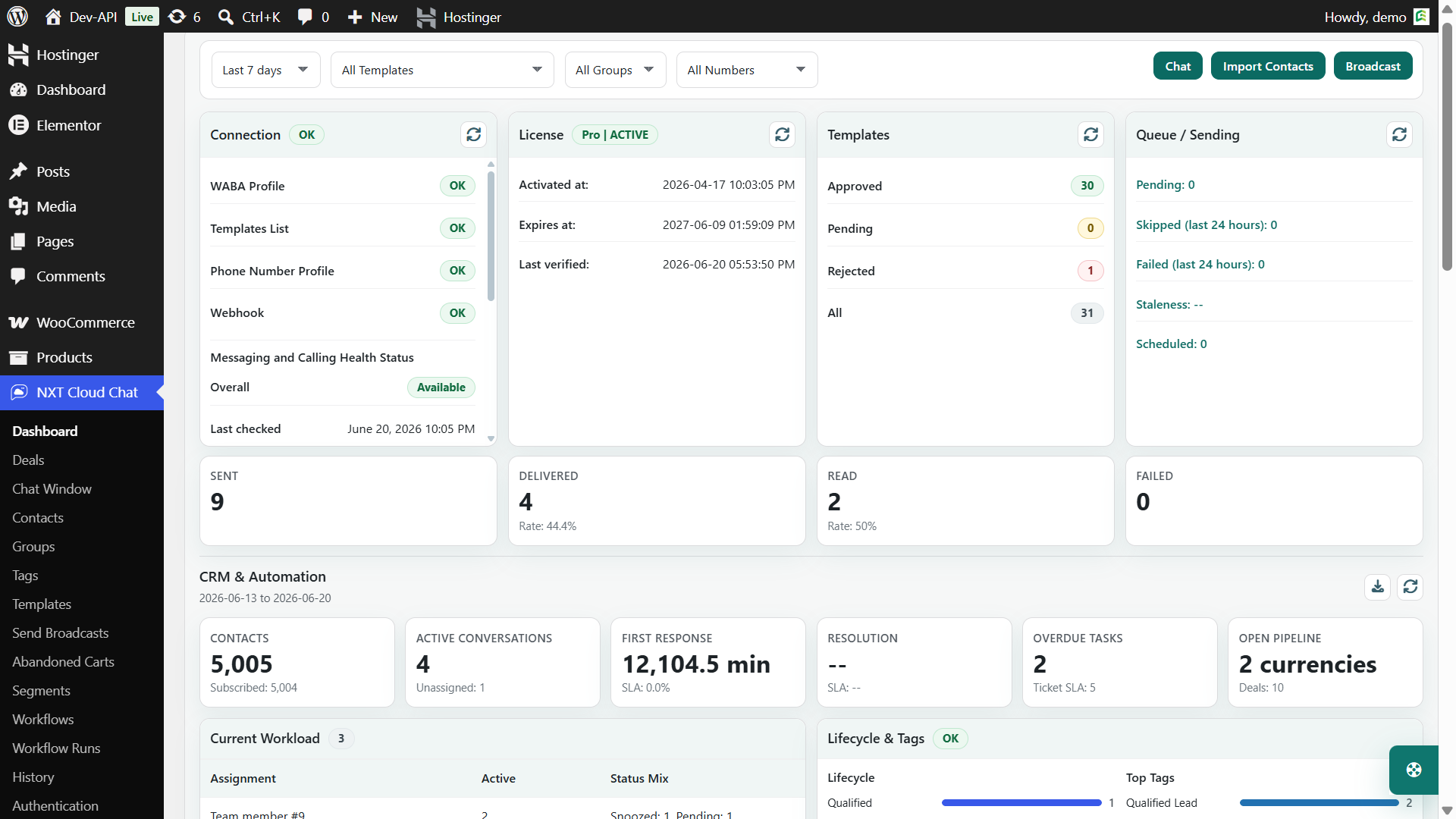
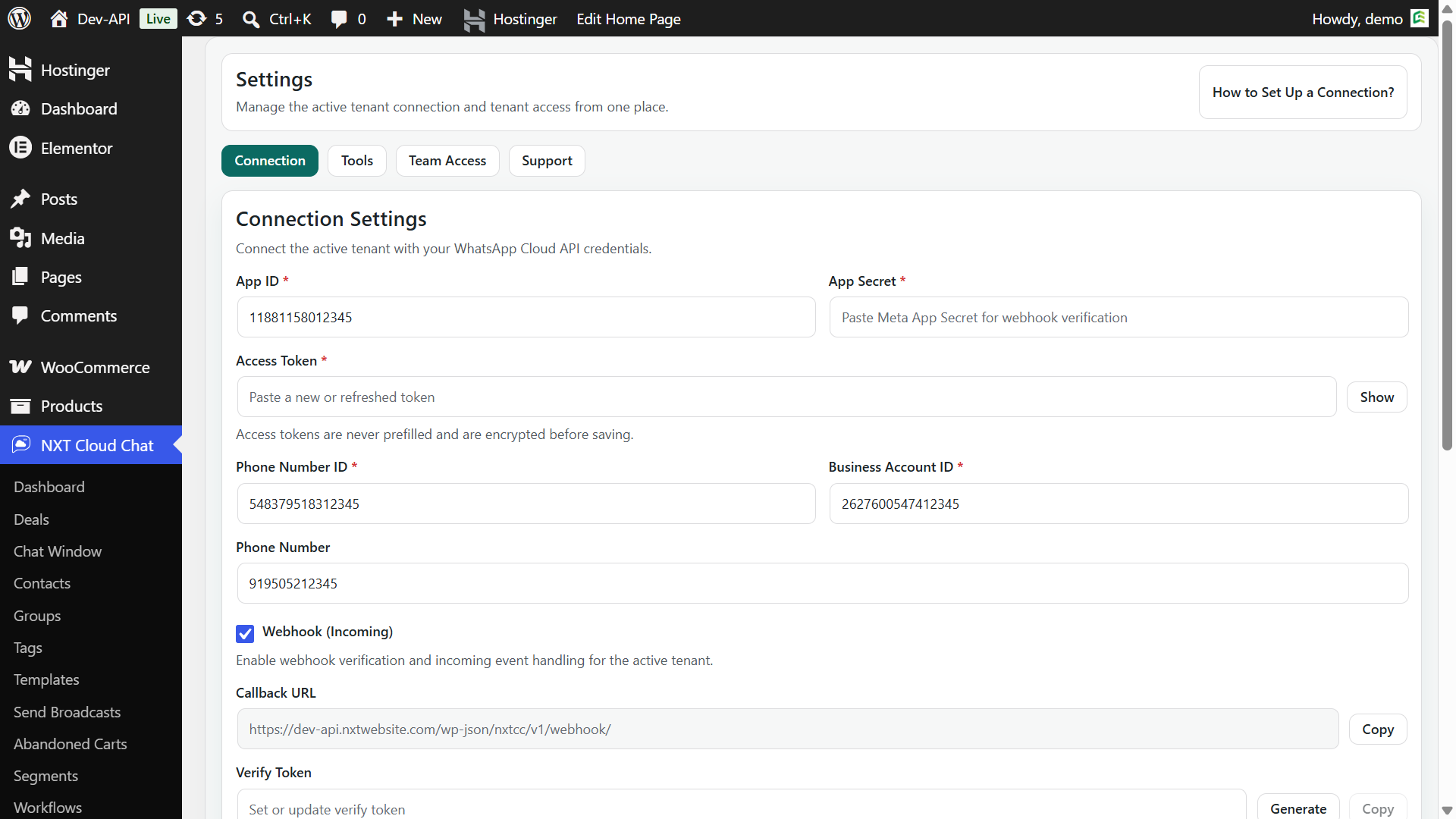
Open NXT Cloud Chat settings and add your WhatsApp Cloud API connection details. These values come from Meta’s developer and business tools. The most important values are the access token, phone number ID, business account ID, app details, and webhook configuration where needed.
After saving the connection, review the dashboard health status. A healthy connection helps prevent failed OTP messages, broken template sending, and confusing login tests.
Step 2: Prepare an Authentication Template
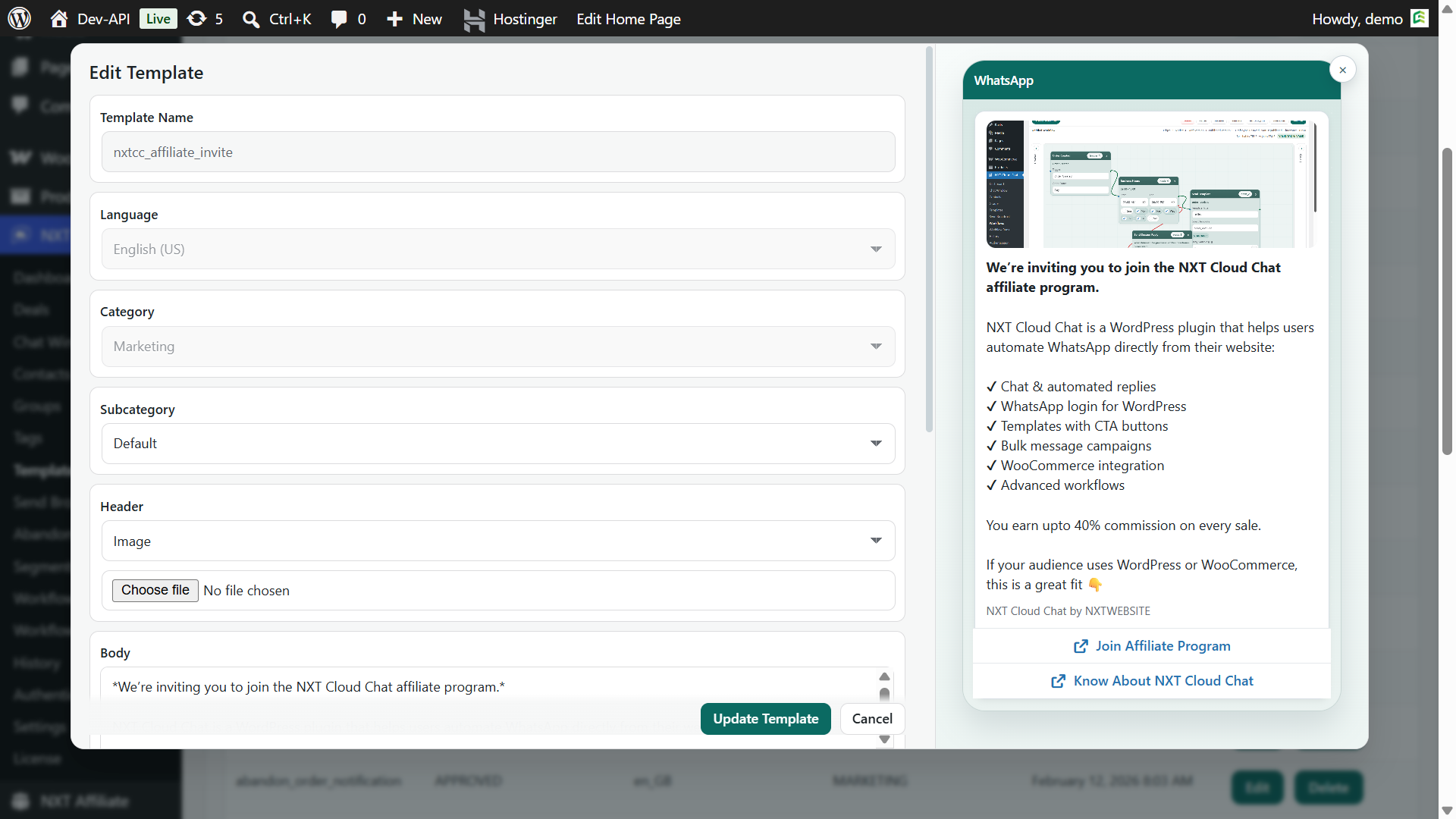
WhatsApp OTP messages should use an approved Authentication template. This template must be short, direct, and focused only on verification. Do not add marketing, coupons, or unrelated content to an OTP template.
If you use NXT Cloud Chat Pro, you can create, edit, manage, and sync WhatsApp templates directly from WordPress. Otherwise, create the Authentication template in Meta’s WhatsApp Business tools and select the approved template in the Authentication settings.
Step 3: Configure Authentication Settings
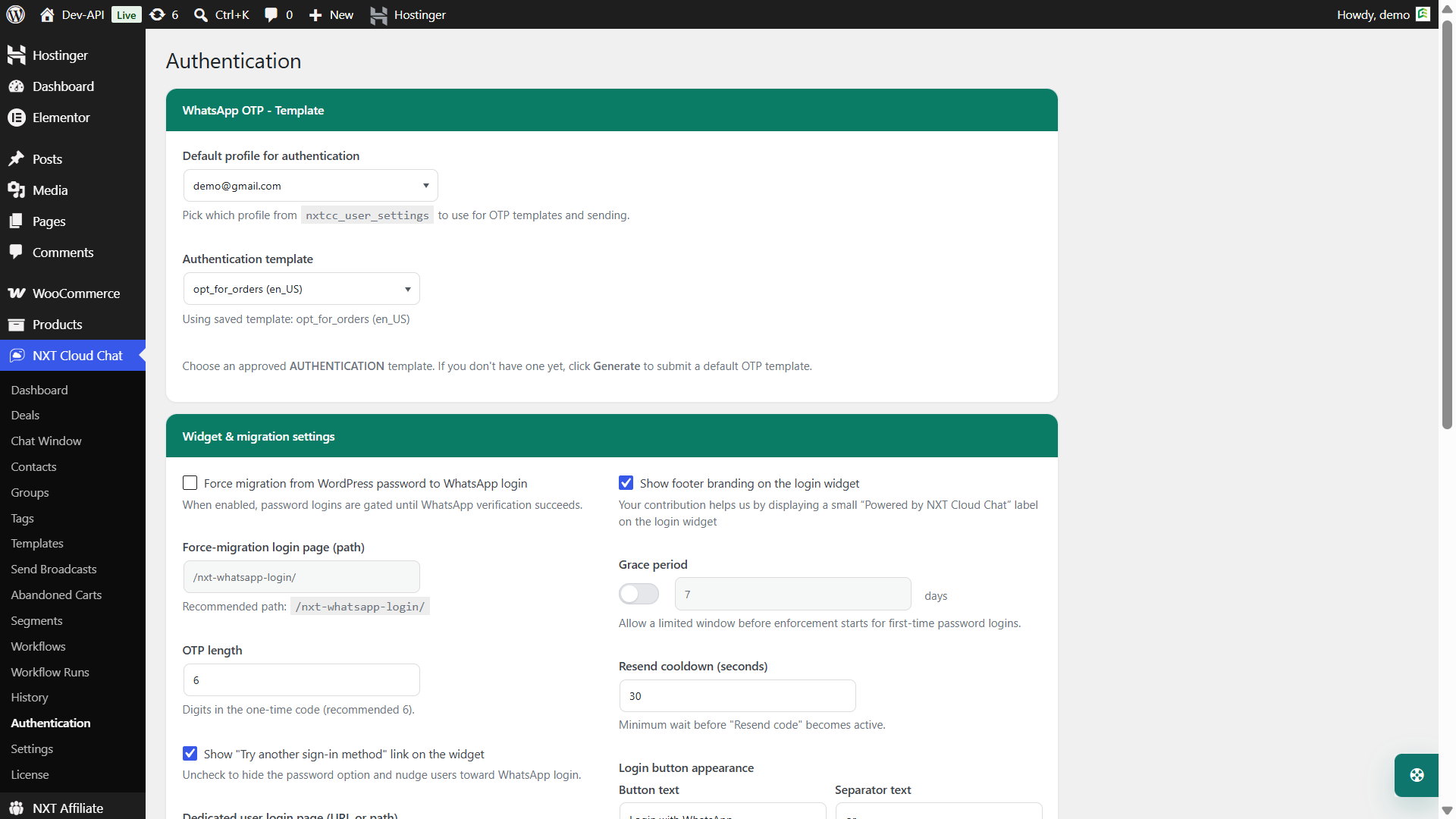
Open NXT Cloud Chat – Authentication in the WordPress admin area. This screen controls how WhatsApp OTP login behaves on your website.
- Select the default profile for authentication.
- Choose the approved WhatsApp Authentication template.
- Configure OTP length, cooldown, and allowed country rules.
- Set login page and force-migration behavior.
- Choose whether to show the Try another sign-in method option.
- Enable WooCommerce My Account login button if your store uses WooCommerce.
- Enable verified login requirement for COD orders if needed.
Step 4: Create a Dedicated WhatsApp Login Page
NXT Cloud Chat includes a shortcode for creating a public WhatsApp login page:
[nxtcc_login_whatsapp]Create a new WordPress page, add the shortcode, and publish it. Many sites use a clean URL such as /nxt-whatsapp-login/. You can use this page as a dedicated login destination or as part of a force-migration flow for existing users.
Step 5: Add WhatsApp Login Buttons
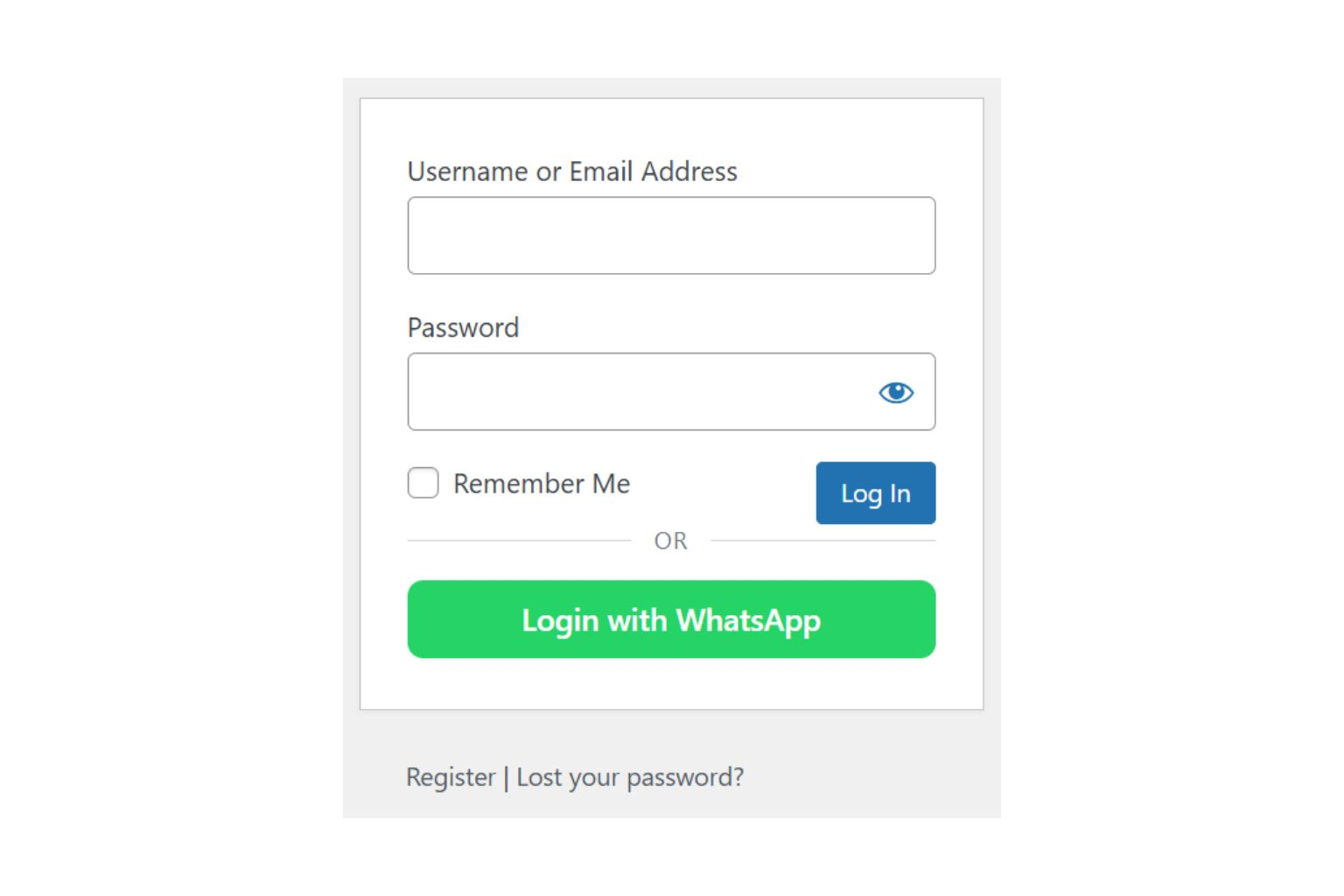
You can show WhatsApp login buttons on supported login screens so users can choose WhatsApp OTP quickly.
- Default WordPress login page.
- WooCommerce My Account login form.
- Dedicated WhatsApp login page using the shortcode.
Step 6: Decide Your Fallback Login Strategy
Not every customer will use WhatsApp the same way. Some users may prefer email/password login, some may need password reset, and some sites may already use Google login or another third-party authentication plugin.
NXT Cloud Chat supports a customer-friendly Try another sign-in method option. When enabled, users can choose an alternative login path instead of being forced through WhatsApp only.
If you want to strongly move users toward WhatsApp login, you can hide the fallback option and redirect the default WordPress login page to your dedicated WhatsApp login page. Recovery and logout flows should still remain available for users who need them.
Step 7: Enable Force Migration for Existing Users
Force migration helps move existing users from password login to WhatsApp verification. When enabled, password logins can be gated until the user completes WhatsApp verification. This is useful for sites that want to gradually convert existing accounts to verified WhatsApp identity.
Use this carefully. For customer-heavy sites, give users clear instructions and consider a grace period so legitimate users are not blocked unexpectedly.
Step 8: Require Verified Login for WooCommerce COD Orders
Cash on Delivery orders can be risky when customers use fake, unreachable, or mistyped phone numbers. NXT Cloud Chat can require verified login for WooCommerce COD orders, so unverified customers are asked to complete WhatsApp verification before the COD order continues.
This does not guarantee that every COD order will be delivered, but it gives your store a stronger reachability signal before accepting the order.
Step 9: Test the Login Flow
Before sending real users to the login page, test the full flow yourself.
- Open the dedicated WhatsApp login page.
- Enter a test phone number with WhatsApp access.
- Confirm the OTP message arrives.
- Enter the OTP and verify login success.
- Test WooCommerce My Account login if enabled.
- Test COD checkout verification if enabled.
- Test the Try another sign-in method link if you keep fallback login available.
Best Practices
- Use only approved Authentication templates for OTP messages.
- Keep OTP messages short and focused on verification.
- Do not include offers or marketing text in authentication messages.
- Keep another sign-in method available when your audience needs it.
- Use country restrictions if your business serves specific regions.
- Test login after changing API credentials or templates.
- Use verified COD login as a risk-reduction step, not as a delivery guarantee.
Troubleshooting
| Problem | What to check |
|---|---|
| OTP not arriving | Check Cloud API token, phone number ID, business account ID, and approved Authentication template. |
| Template not available | Confirm the template is approved and synced or selected correctly. |
| Login button not visible | Check Authentication settings for WordPress login or WooCommerce My Account button options. |
| User wants password login | Enable or keep the Try another sign-in method option. |
| COD verification not triggering | Confirm WooCommerce is active, payment method is COD, and verified-login requirement is enabled. |
Why NXT Cloud Chat Is a Strong Choice
NXT Cloud Chat is more than a login add-on. It is a WordPress-native WhatsApp plugin that can start with OTP login and grow into CRM inbox, contacts, groups, tags, team access, WooCommerce messaging, broadcasts, workflows, and abandoned cart recovery with Pro.
For WordPress and WooCommerce businesses, that matters because login, customer data, orders, carts, support, and WhatsApp communication can stay close to the website where the relationship begins.
If you want to add WhatsApp Login to WordPress using the official WhatsApp Cloud API, NXT Cloud Chat gives you a practical path from simple OTP login to a fuller WhatsApp CRM experience.
Frequently Asked Questions
Can I add WhatsApp login to WordPress?
Yes. NXT Cloud Chat lets you add WhatsApp OTP login to WordPress using the official WhatsApp Cloud API and an approved Authentication template.
Does NXT Cloud Chat support WooCommerce login?
Yes. You can enable a WhatsApp login button for the WooCommerce My Account login form from the Authentication settings screen.
Can I keep email or password login?
Yes. You can use WhatsApp OTP as the preferred login method while keeping another sign-in path available through the Try another sign-in method option.
Can it work with Google login?
NXT Cloud Chat can be used alongside existing WordPress login behavior and compatible third-party authentication plugins such as Google login. The final experience depends on your theme, login page, and authentication plugin setup.
Can WhatsApp login reduce COD RTO?
It can help reduce avoidable COD risk by verifying that the customer can receive WhatsApp OTP on the number used for checkout. It does not guarantee delivery, but it improves customer reachability before accepting COD orders.
Do I need approved templates?
Yes. WhatsApp OTP login should use an approved Authentication template through the official WhatsApp Business Platform.