A WhatsApp shared inbox for WordPress gives your team a common place to answer customer messages, understand previous conversations, and decide who should handle the next action. For a store or service business, that means connecting the conversation to a customer record instead of treating every message as an isolated question.
NXT Cloud Chat brings that workspace into WordPress admin through a direct connection to Meta’s official WhatsApp Cloud API. The NXT Cloud Chat free plugin includes the inbox, contacts, explicit tickets, team permissions, SLA targets, agent views, and optional browser notifications. Pro adds workflow routing, escalations, templates, and advanced reporting. This guide walks through a practical support process and explains which edition you need.
What Makes an Inbox Useful for a Team?
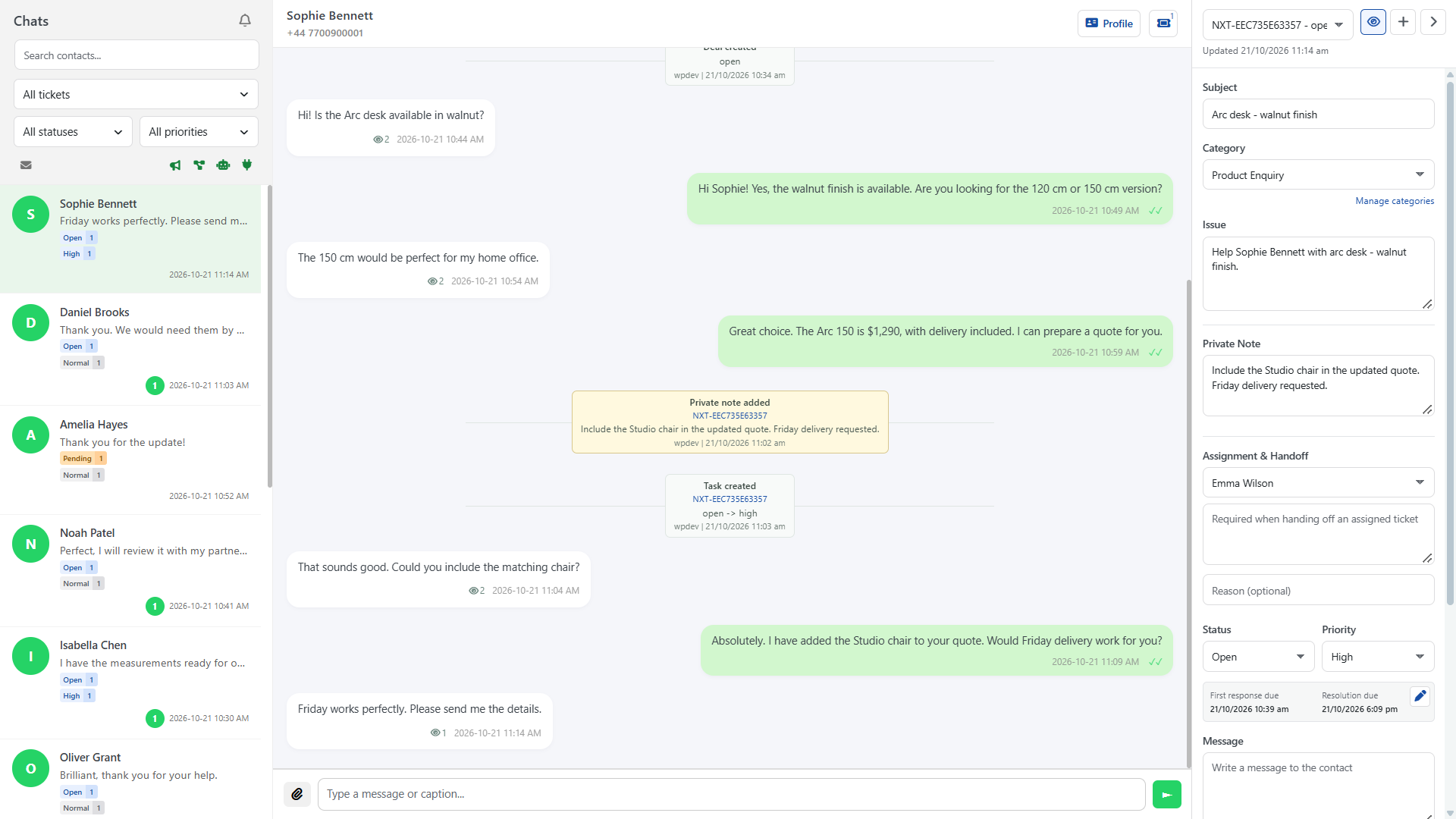
Seeing the same messages is only the starting point. A useful team inbox also makes ownership, context, and outstanding work visible. Before replying, an agent should be able to check the customer’s history, identify any active issue, and understand what another handler has already promised.
In NXT Cloud Chat, these responsibilities remain distinct. The contact holds the customer relationship. The chat holds the conversation. A ticket tracks a specific issue, while tasks and deals support follow-up and sales activity. A customer can have several tickets without needing duplicate contact records. Your team can answer a simple question without creating a ticket at all.
Set Up Your WhatsApp Shared Inbox in WordPress
Start with a site running WordPress 6.4 or later and PHP 8.2 or later. Install and activate the NXT Cloud Chat free plugin, then open its Settings screen. You need your own Meta app and WhatsApp Cloud API credentials; installing the plugin does not create a Meta business account for you.
- Save the App ID, App Secret, Access Token, Phone Number ID, and Business / Messaging Account ID.
- Configure the webhook using the supplied Callback URL and Verify Token, keeping the matching App Secret saved for signature validation.
- Run connection diagnostics and confirm that incoming messages reach the Chat Window before inviting your team.
- Create Access Teams, choose module permissions, and review record scopes for each role.
Use the step-by-step setup guide for connection details. Keep credentials out of public pages and screenshots. WhatsApp platform requirements still apply to your connection; the shared inbox is not a way to bypass them.
Read the Customer Context Before Replying
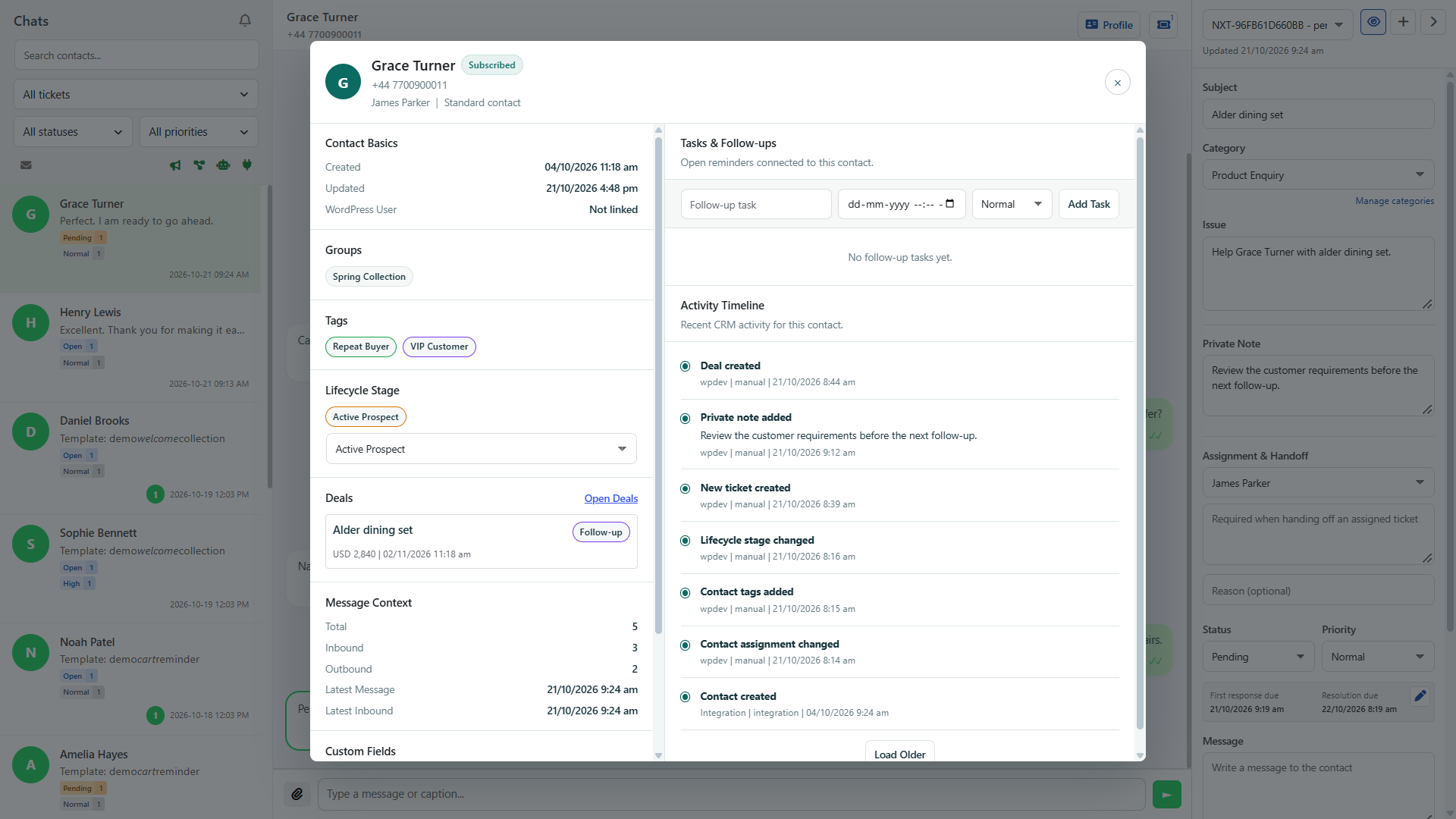
Open the conversation and review the contact profile before sending a reply. The free plugin brings together groups, tags, lifecycle stage, ownership, follow-up tasks, linked deals, and customer activity. These details help distinguish a new enquiry from an existing sales opportunity or an unresolved support issue.
For example, a customer asking about a delivery may also have a task assigned to sales. Checking the profile helps support avoid giving an answer that conflicts with that follow-up. Use descriptive tags and consistent lifecycle stages, but keep important issue details in the ticket rather than hiding them inside a label.
Create Tickets Explicitly for Issues Worth Tracking
Ordinary incoming messages, replies, and opening chats do not automatically create tickets. Use the ticket panel when a customer raises something that needs an owner, a resolution, or a handoff. This keeps a quick product question separate from a complaint that requires investigation.
Give the ticket a clear subject, category, persistent Issue description, status, and priority. The Issue field is required for new panel-created tickets. Describe the problem and the expected next step so another authorized handler can understand it without rereading the entire chat. Several tickets can belong to the same contact; select the one relevant to the current work.
Save records the ticket without sending a customer message. Save & Send additionally requires message content, an open reply window, and the necessary permissions. When the button is disabled, its tooltip explains unmet requirements. Saving an issue and communicating with the customer are related actions, but they are not the same action.
Assign Responsibility and Limit Access
The free plugin supports manual contact ownership and ticket assignment. Choose an eligible WordPress user or Access Team for the ticket instead of assuming that everyone who can see a conversation owns it. A contact owner and the handler of one particular issue may be different people.
Access Teams control module permissions and record scopes. You can provide view-only or manage access and restrict records to assigned work, a team queue, or all records as appropriate. Assignment eligibility also matters: visibility does not automatically make every user a valid assignee. Review permissions from the perspective of an ordinary team member before relying on an administrator’s view of the inbox.
Keep Private Notes and Handoff Notes Separate
A Private Note is visible only to its author while that author retains record access. It is useful for personal working context, not for instructions that another agent must follow. A Handoff Note is shared with authorized handlers and should explain what has happened, what remains unresolved, and what the customer expects next.
For instance, write the agreed callback time and the missing order information in the shared handoff. Do not put them only in your private note and expect the next handler to discover them. Note visibility describes the plugin’s record-access behavior; it does not make direct database access part of that same privacy boundary.
Use Views, Filters, and SLA Targets to Find Work
The free plugin includes All, Mine, Team Queue, Unassigned, Overdue, and Recently Resolved inbox views. Combine assignment, status, priority, and Following filters to focus on a manageable queue. Selected ticket criteria match the same accessible ticket, rather than borrowing different attributes from unrelated tickets belonging to one contact.
Message-source controls filter chats by their latest message source, including Broadcast, Workflow, System, and Integration. Unread-only narrows the list to unread incoming messages. Unread customer chats remain eligible when an automated source is hidden, but search, ticket filters, and permissions still apply.
Priority-based first-response and resolution SLA targets help your team spot overdue issues. Treat these as operational deadlines, not a promise that the plugin will answer or resolve a ticket for you. Review overdue work, update the customer, and leave a useful handoff when responsibility changes.
Understand Agent Views and WhatsApp Read Receipts
The Viewed by list records unique agents and their first-view times for incoming messages. A view is recorded when the message is visibly observed in a focused chat. Background polling, offscreen messages, and hidden tabs do not create agent views.
These records are different from customer WhatsApp delivery and read receipts. An agent viewing an incoming question does not prove that a customer has read your outgoing answer. Likewise, the inbox unread count is shared, not a separate personal counter for each team member. A view also does not mean that the issue has been assigned or resolved.
Enable Optional Browser Notifications
Browser notifications are included in the NXT Cloud Chat free plugin. Open the bell beside Chats, enable the current browser, and grant notification permission. Choose Assigned to me and my team or All accessible chats. Both choices respect current record permissions independently of inbox display filters. Previews are off by default; consider who can see the device’s lock screen before enabling names or message text.
Web Push needs HTTPS, a supported browser, working WordPress cron, cURL, mbstring, and OpenSSL P-256 support. Settings > Tools contains server diagnostics. Chrome, Edge, Firefox, and Android Chrome have been tested; Safari and iPhone/iPad Home Screen delivery remain unverified for this release. Browser and operating-system restrictions can delay or suppress alerts.
Alerts expire after five minutes, and messages from before enrollment are not replayed. Logout revokes the matching session’s enrollment; another signed-in browser remains independent. A new login must enable notifications again. Already submitted notifications cannot be recalled, and acceptance by a push service does not prove that the device displayed them. Keep reviewing the inbox rather than treating notifications as a complete work queue.
Add Pro When You Need Automated Routing
Manual ticket management does not require Pro. Add NXT Cloud Chat Pro when you want configured workflows to route tickets, respond to SLA deadlines, or escalate work. Pro requires the NXT Cloud Chat free plugin and an active commercial license.
A workflow could start from an incoming message, check its keywords, explicitly create a new ticket, and route it through an eligible round-robin or least-busy assignment pool. Ticket conditions and lookups do not create tickets as a side effect. Validate ticket context before publishing a workflow, and test the behavior with your own test contact before applying it to customer work.
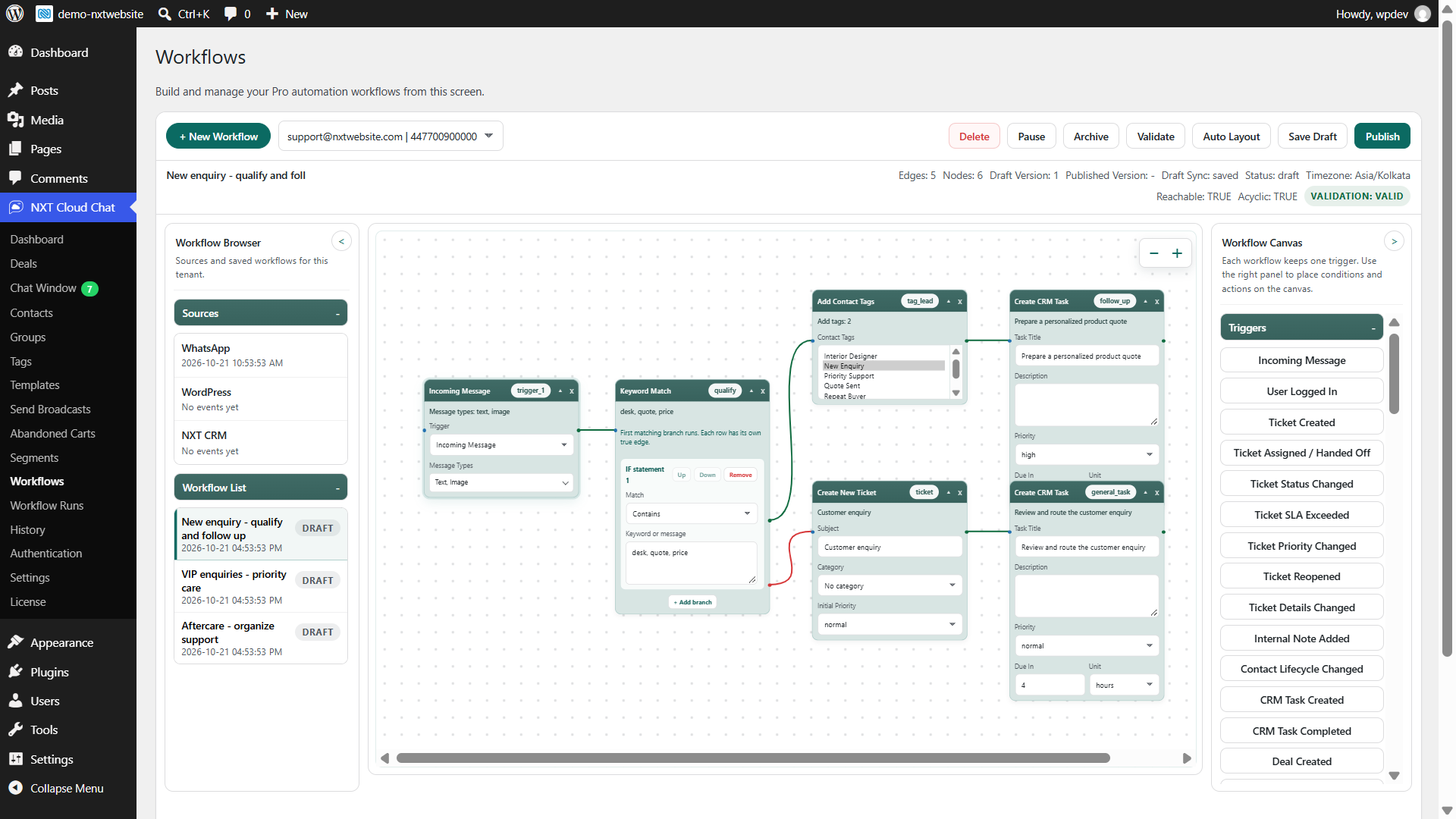
Workflow Runs separates execution from message acceptance, delivery, and reading. A successful run is not proof of customer delivery. Pro also supports approved template sending and advanced dashboard reporting; the free plugin’s inbox remains the foundation for daily conversations and ticket handling.
Frequently Asked Questions
Do I need WooCommerce to use the shared inbox?
No. The core inbox, contacts, tickets, permissions, and WordPress OTP login work without WooCommerce. WooCommerce is needed for commerce-specific features such as order and abandoned-cart automation.
Will every customer message become a ticket?
No. Tickets are created explicitly from the panel or by configured automation. A conversation can remain ticket-free, and one customer can have several separate tickets.
Where are conversations and customer records stored?
CRM and operational records stay in your WordPress database. WhatsApp messaging still uses Meta’s Cloud API, and optional browser alerts use browser-vendor push services. Self-hosted records do not mean that no external services are involved.
Start With a Clear Support Process
Begin with the NXT Cloud Chat free plugin, define who owns incoming work, and agree when an issue needs a ticket. Use shared handoffs for team instructions and review overdue items regularly. Once that process is working, add Pro automation where it removes a repeatable manual step. Explore the NXT Cloud Chat feature overview or follow the setup guide to build your WordPress support workspace.