
Passwords are becoming outdated. Users forget them, reuse them, or abandon login forms altogether.
With WhatsApp Login for WordPress, users can securely authenticate using a one-time passcode (OTP) sent directly to their WhatsApp number — no password required.
In this guide, you’ll learn how to set up WhatsApp login using NXT Cloud Chat, configure OTP templates, manage migration settings, and control how authentication works on your website.
What You Need Before Starting
Before enabling WhatsApp login on your WordPress website, make sure you have:
- A Facebook Business Manager account
- A WhatsApp Business App connected to the Cloud API
- App ID
- App Secret
- Access Token
- Phone Number ID
- Business Account ID
Once you have these details ready, you can connect your website.
Step 1: Install and Connect NXT Cloud Chat
Install and activate NXT Cloud Chat from your WordPress dashboard.
After activation:
- Go to the Settings page.
- Enter the following details:
- App ID
- App Secret
- Access Token
- Phone Number ID
- Business Account ID
- Webhook (optional – used only for receiving messages)
Save the settings.
For detailed setup guide Click here.
Once the connection is successful, your WordPress website is now connected to the official WhatsApp Cloud API.
You are ready to enable WhatsApp login.
Step 2: Create a WhatsApp Login Page
To display the login form on the frontend:
- Create a new WordPress page (for example: “Login with WhatsApp”).
- Add one of the following:
Gutenberg Block:
NXTCC: WhatsApp Login
OR Shortcode:
[nxtcc_login_whatsapp]
This will display the WhatsApp login form on your website.
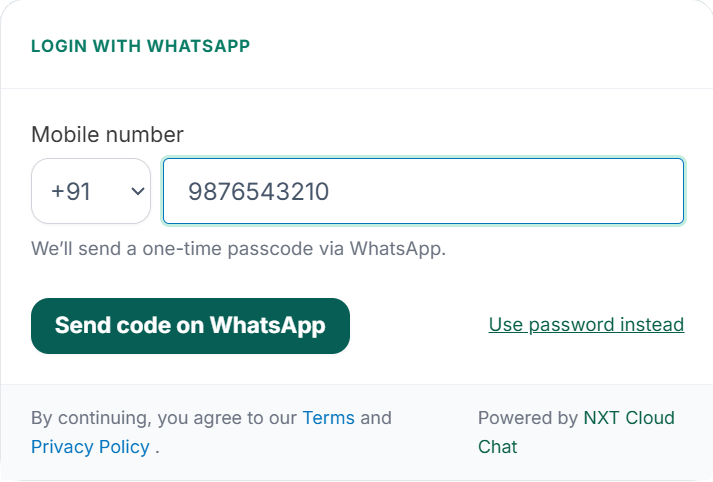
The login form includes:
- Country selector
- Mobile number input
- Send code on WhatsApp button
- Optional “Use password instead” link
- Terms & Privacy links
- Optional footer branding
After creating the page, go to the Authentication menu to configure how the login system works.
Authentication Settings Explained
The Authentication page contains two main sections:
- WhatsApp OTP — Template Configuration
- Widget & Migration Settings
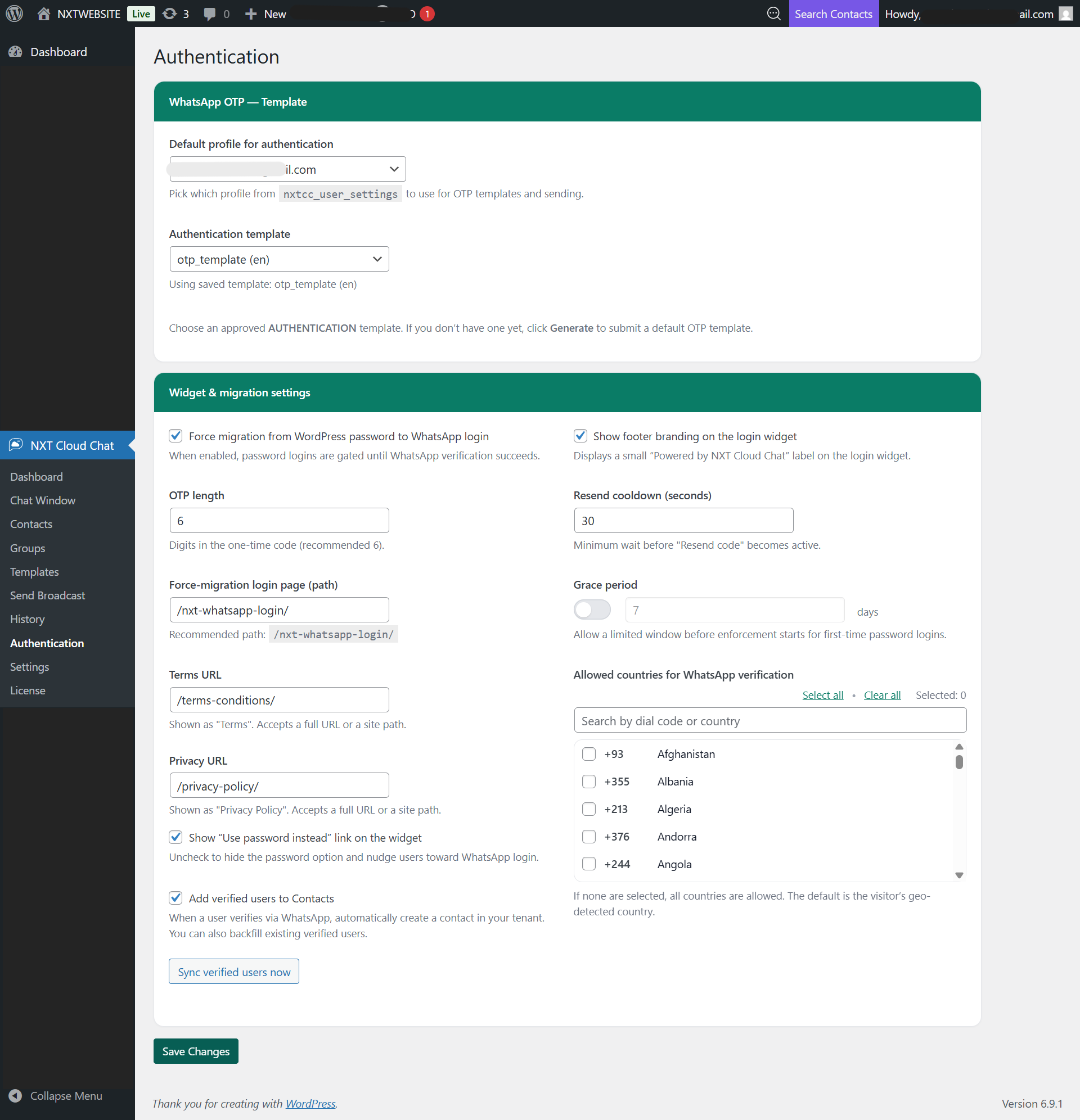
Each section controls a different part of the login experience.
WhatsApp OTP — Template Configuration
Default Profile for Authentication
If your website supports multiple users, admins, or tenants, you must select a default profile.
Even if your website has multiple users internally, WhatsApp login authentication is handled by one selected profile — typically the primary admin account.
All OTP messages and login verifications are processed through this selected profile.
Authentication Template
WhatsApp requires an approved Authentication template to send OTP messages.
If your WhatsApp account does not yet have an OTP template:
- A Generate button will appear.
- Clicking it will automatically create and submit a default OTP template for approval.
If you already have approved templates:
- The Generate button will not appear.
- You can select an existing template.
Templates are always fetched from the selected profile.
Widget & Migration Settings
This section controls login behavior, security rules, and user management.
Force Migration from WordPress Password to WhatsApp Login
When enabled:
- Existing users who previously logged in using email and password
- And who have not verified via WhatsApp
Will be redirected to the Force-migration login page.
By default, the path is:
/nxt-whatsapp-login/
You may change this path as needed.
On this page, users will see a message explaining that WhatsApp verification is required.
Grace Period (Optional)
If a grace period is configured (for example, 7 days):
- Password login continues temporarily
- Migration enforcement begins only after the selected number of days
This helps transition existing users smoothly.
OTP Length
You can configure the OTP length between:
- 4 to 8 digits
A 6-digit OTP is recommended for balanced security and usability.
Resend Cooldown (Seconds)
This setting defines how long users must wait before requesting another OTP.
Minimum allowed: 10 seconds.
This prevents excessive OTP requests and improves stability.
Terms URL and Privacy URL
These links appear on the login form.
You can enter full URLs or use site paths such as:
/terms-conditions/
They are displayed below the login button for compliance.
Show “Use Password Instead”
If enabled:
- A link appears on the login widget
- Users can switch to traditional email and password login
- It redirects to the default WordPress login page (wp-login.php)
If disabled, the “Use Password Instead” option will not be displayed on the login widget.
Allowed Countries for WhatsApp Verification
You can restrict login access to specific countries.
- If none are selected, all countries are allowed.
- By default, the visitor’s country is automatically detected (beta feature).
This option is useful for region-specific websites.
Add Verified Users to Contacts
When enabled:
- Any user who successfully logs in via WhatsApp
- Is automatically saved in the Contacts list
- Assigned to the default Verified group
This helps maintain a structured contact database.
Sync Verified Users Now
The Sync verified users now button allows you to manually update and backfill previously verified WhatsApp users into the Contacts list.
This ensures that all verified users are properly added to the Verified group.
How the WhatsApp Login Process Works
Here’s what happens on the frontend:
- User enters mobile number
- An OTP is sent via WhatsApp
- User enters the OTP
- Verification completes
- User is logged in
If migration is enabled and a user has not verified yet, they will be redirected to complete WhatsApp verification before accessing the site.
Important Note About User Email Addresses
When a new user logs in using WhatsApp for the first time and does not already exist in WordPress:
- A WordPress user account is automatically created.
- Since WordPress requires an email address, a temporary email is generated using the user’s WhatsApp number.
The format will look like this:
91XXXXXXXXXX@yourdomain.com
This email exists only to satisfy the required WordPress email field.
Users can update their email address anytime from their Profile section after logging in.
Why Use NXT Cloud Chat for WhatsApp Login
Using NXT Cloud Chat, you can:
- Enable password-free login
- Improve authentication speed
- Reduce login friction
- Enforce secure OTP verification
- Manage login migration policies
- Automatically organize verified users
You can explore the plugin here:
https://nxtwebsite.com/wordpress/nxt-cloud-chat/
For detailed setup documentation, visit:
https://nxtcloudchat.com/user-guide/
Final Thoughts
Adding WhatsApp Login to WordPress improves both security and user experience.
With proper configuration, you can:
- Control authentication behavior
- Configure OTP rules
- Manage migration policies
- Restrict login access by country
- Automatically organize verified users
If you’re ready to implement WhatsApp login on your website, you can download and start using NXT Cloud Chat today.
FAQ
Do I need a webhook to use WhatsApp Login?
No. Webhook is optional and is mainly used for receiving WhatsApp messages. WhatsApp login can work without webhook configuration.
Which profile should I select in Authentication settings?
Select the primary profile (usually the admin). Even if your website has multiple users/admins/tenants internally, login authentication is handled by one selected profile.
Why do I see a “Generate” button for the OTP template?
New WhatsApp accounts may not have an OTP authentication template yet. The Generate button appears to help you create a default OTP template. If templates already exist, the button won’t appear.
What happens if “Use Password Instead” is disabled?
If disabled, the “Use Password Instead” link will not be shown on the login widget.
What does “Sync verified users now” do?
It manually updates the verified users in your Contacts list, so previously verified users can be added/updated in the Verified group.
What email is used when a brand-new user logs in with WhatsApp?
WordPress requires an email address. If the user doesn’t already exist, a temporary email is assigned using the WhatsApp number and your domain (example: 91XXXXXXXXXXr@yourdomain.com). The user can change it later from the Profile section.
Can I restrict WhatsApp login to specific countries?
Yes. You can configure Allowed Countries for WhatsApp verification. If not restricted, users can log in from any country. By default, the country may be geo-detected (beta).
What OTP length is recommended?
You can set OTP length from 4 to 8 digits. A 6-digit OTP is commonly recommended for a good balance of security and usability.
What is the minimum resend cooldown?
What is the minimum resend cooldown?