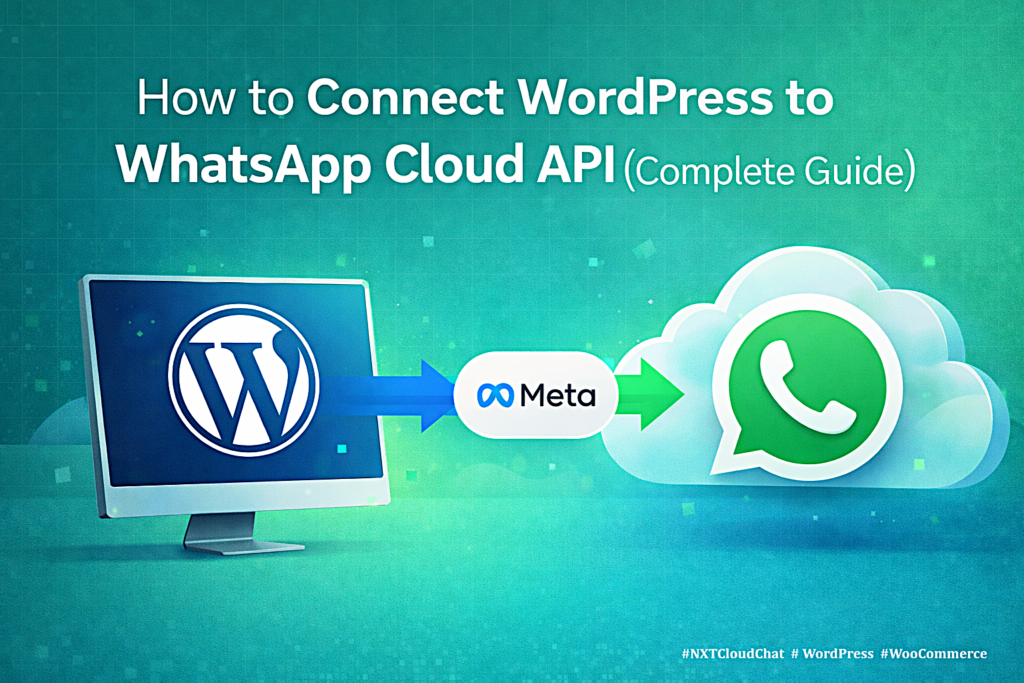
WhatsApp Cloud API setup for WordPress can feel confusing the first time because it involves both Meta Business tools and your WordPress plugin settings. Once you understand the pieces, the process becomes much easier.
The official WhatsApp Cloud API lets your WordPress site send and receive WhatsApp messages through Meta’s WhatsApp Business Platform. With the right plugin, you can use it for WhatsApp OTP login, CRM inbox, WooCommerce order updates, approved templates, broadcasts, abandoned cart recovery, and workflow automation.
In this guide, you will learn what you need before setup, how the official Cloud API connection works, and how NXT Cloud Chat helps WordPress users connect their website to WhatsApp correctly.
Important: Meta can update its Business Manager and developer dashboard screens over time. Use this article as a practical WordPress setup guide, and always check Meta’s official WhatsApp Cloud API documentation for the latest interface details.
What You Need Before Starting
- A WordPress website with administrator access.
- A Meta Business account.
- A WhatsApp Business account connected to Meta.
- A phone number that can be used for WhatsApp Business Platform setup.
- Access token, phone number ID, and business account ID from Meta.
- The NXT Cloud Chat plugin installed on WordPress.
Key WhatsApp Cloud API Terms
Before copying values into WordPress, understand what each value means.
| Term | Meaning |
|---|---|
| Access token | The credential your site uses to call the WhatsApp Cloud API. |
| Phone number ID | The ID of the WhatsApp sender phone number in Meta. |
| Business account ID | The ID of your WhatsApp Business account. |
| Webhook | The URL where Meta sends incoming message and delivery events. |
| Verify token | A shared value used when Meta verifies your webhook. |
| Template | An approved WhatsApp message format for business-initiated messages. |
Step 1: Install NXT Cloud Chat
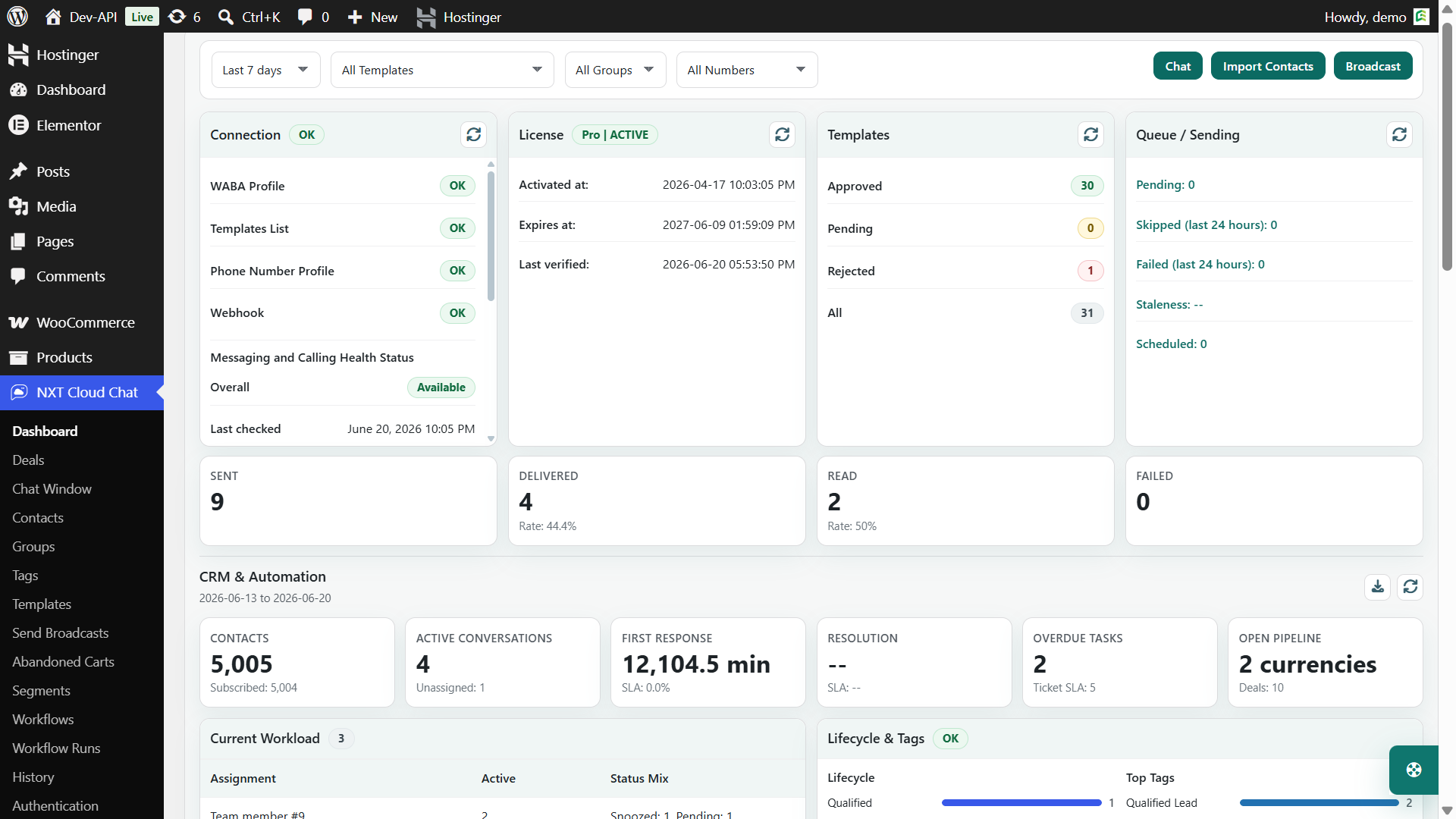
Install NXT Cloud Chat from your WordPress admin area. After activation, open the plugin dashboard. You will see the connection card and health status areas that help you understand whether your WhatsApp setup is complete.
The free plugin gives you the core connection, dashboard, CRM inbox, contacts, groups, tags, team access, history, authentication, and WhatsApp OTP login tools. NXT Cloud Chat Pro adds templates, broadcasts, abandoned carts, workflows, workflow runs, WooCommerce messaging, and advanced automation.
Step 2: Create or Open Your Meta App
Inside Meta for Developers, create or open the app that will use WhatsApp. Add the WhatsApp product if it is not already available. Meta will show the WhatsApp Cloud API setup area where you can generate or use the required values.
You will usually need to locate:
- Temporary or permanent access token
- Phone number ID
- WhatsApp Business account ID
- Webhook configuration fields
Step 3: Add Connection Details in WordPress
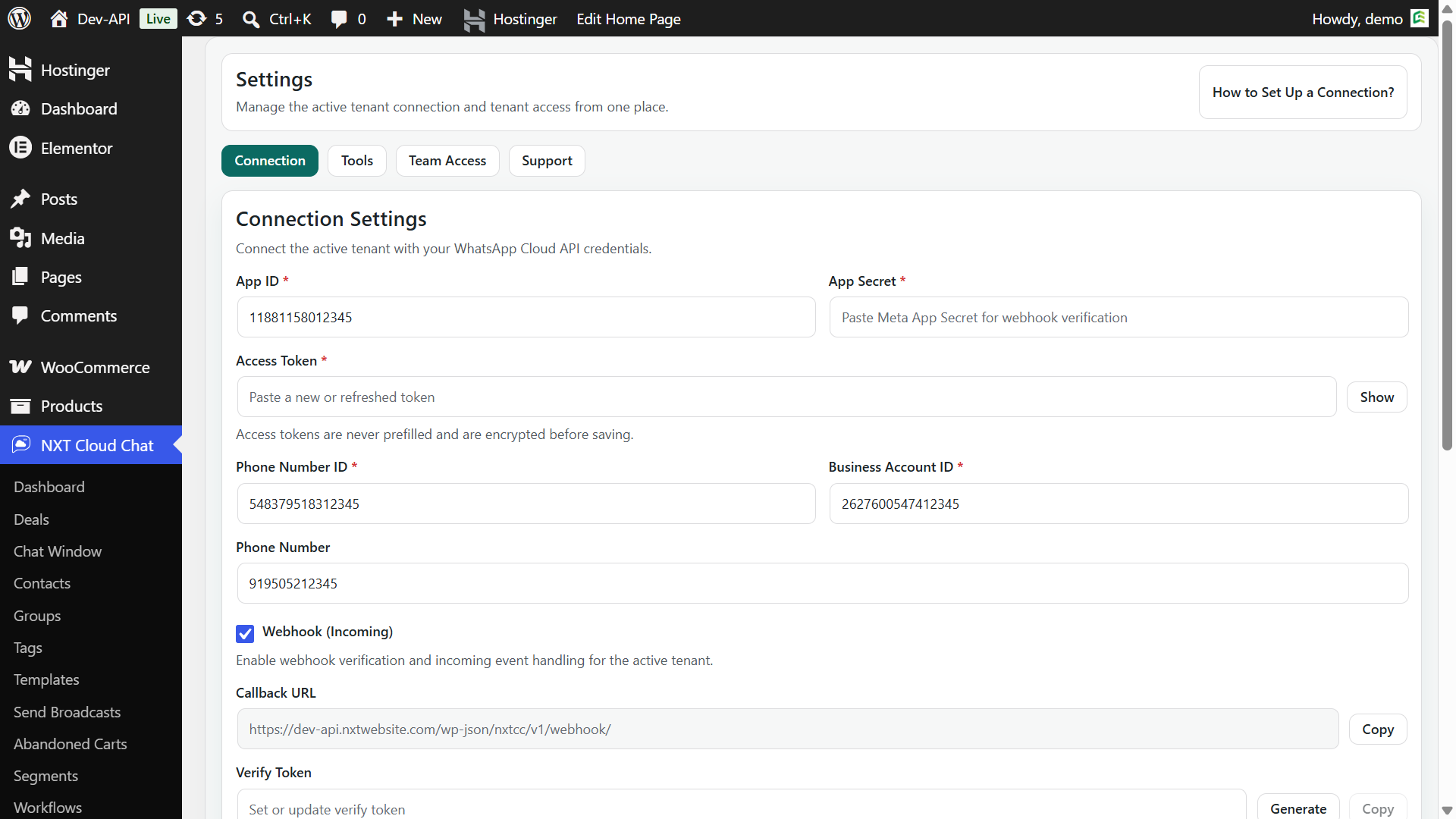
In NXT Cloud Chat settings, enter the required values from Meta. Use the Connection settings tab to save your access token, phone number ID, business account ID, and related setup values.
Step 4: Configure the Webhook
The webhook is important because it lets WordPress receive incoming WhatsApp messages, delivery events, interactive replies, and other updates from Meta.
In Meta, configure the webhook callback URL and verify token provided by your plugin setup. After verification, subscribe to the relevant WhatsApp webhook fields required by your message flow.
If webhook setup is incomplete, your site may send messages but fail to show incoming replies or status updates correctly.
Step 5: Check Messaging and Calling Health Status
NXT Cloud Chat includes dashboard health status for the connected WhatsApp node. This helps administrators see whether Meta reports the phone number and messaging/calling setup as healthy, limited, or requiring attention.
If the health status shows a warning, open the reason details and fix the connection or Meta configuration before sending production traffic.
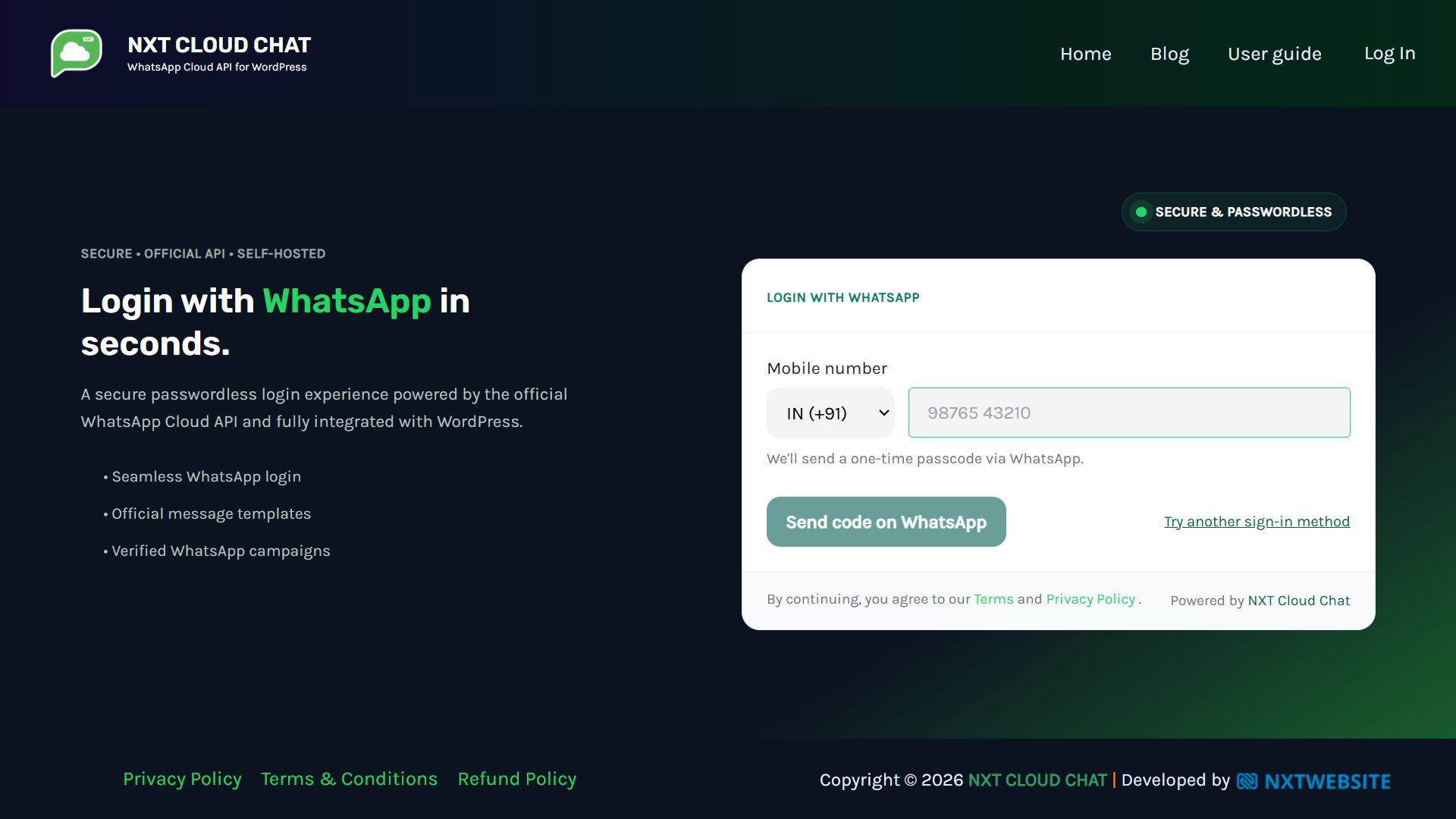
Step 6: Test WhatsApp OTP Login
After the connection is healthy, test WhatsApp OTP login. NXT Cloud Chat can add WhatsApp login support for WordPress and WooCommerce, including login buttons and verification behavior.
Step 7: Sync Templates for Pro Messaging
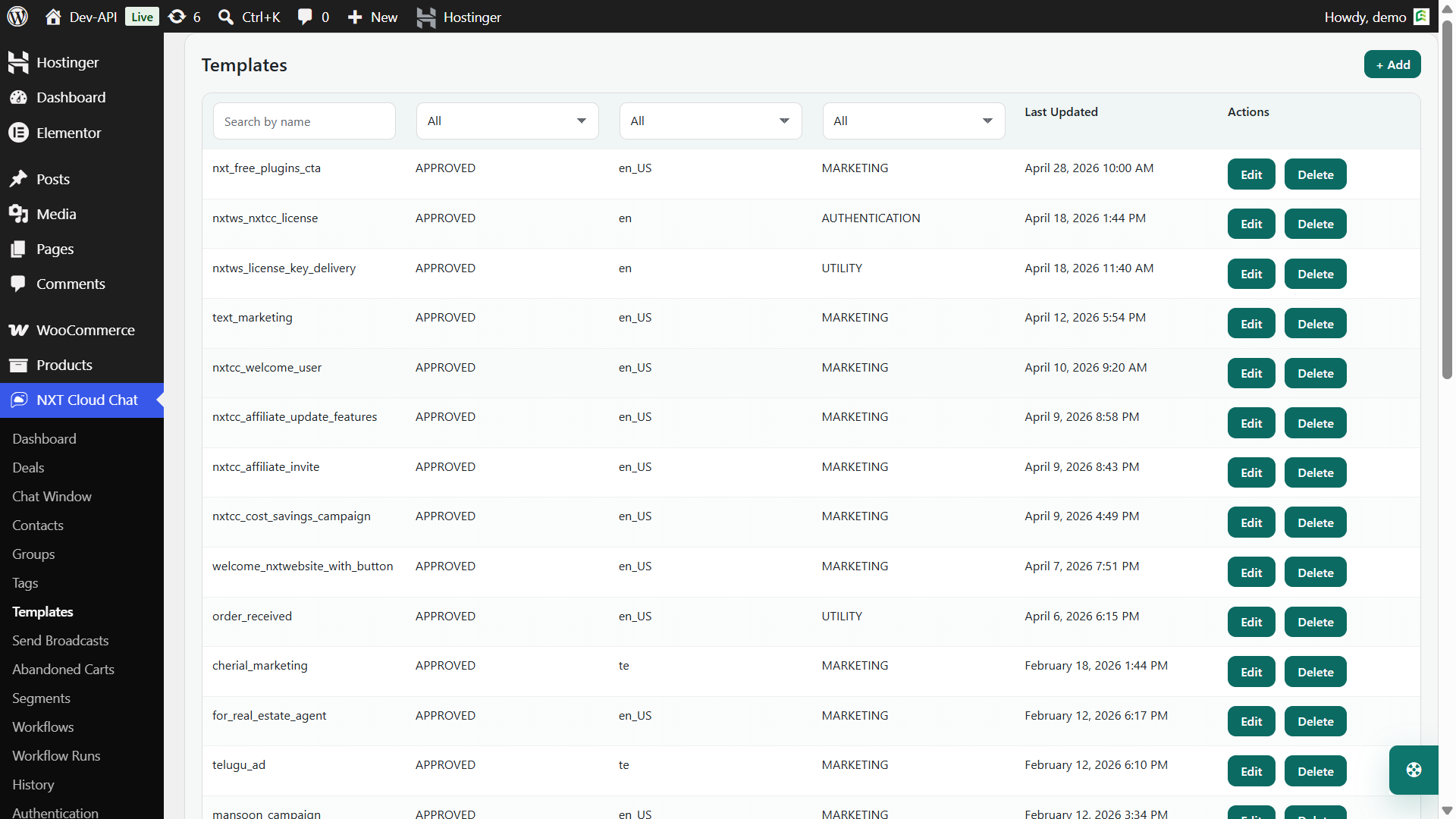
If you use NXT Cloud Chat Pro, sync approved templates from Meta into WordPress. Approved templates are required for many business-initiated messages, including broadcasts, WooCommerce order updates, abandoned cart recovery, and workflow-triggered messages.
Remember the three practical template categories:
- Authentication for OTP and verification.
- Utility for order, account, payment, and service updates.
- Marketing for promotions, campaigns, and abandoned cart recovery.
Common Setup Problems
- Invalid token: Check token expiry, permissions, and whether the correct Meta app is used.
- Wrong phone number ID: Make sure you copied the phone number ID, not the display phone number.
- Webhook not verifying: Recheck callback URL, verify token, SSL, and firewall rules.
- Templates not showing: Sync templates after approval and confirm the correct business account.
- Incoming messages missing: Check webhook subscriptions and health status.
Why NXT Cloud Chat Helps
NXT Cloud Chat turns the official WhatsApp Cloud API into a WordPress admin experience. Instead of stopping at a raw API connection, it gives you dashboard health, contacts, CRM inbox, login, templates, broadcasts, WooCommerce automation, abandoned carts, workflows, and developer-friendly integration points.
If you want to connect WordPress to WhatsApp without building everything from scratch, NXT Cloud Chat gives you the practical bridge between Meta’s official API and your WordPress business workflows.
Sources Checked
Frequently Asked Questions
Can I connect WordPress to the official WhatsApp Cloud API?
Yes. With NXT Cloud Chat, you can connect WordPress to the official WhatsApp Cloud API using values from Meta such as access token, phone number ID, business account ID, and webhook settings.
Do I need a Meta Business account?
Yes. The official WhatsApp Cloud API is managed through Meta’s WhatsApp Business Platform and related developer tools.
Can I use WhatsApp OTP login after setup?
Yes. NXT Cloud Chat supports WhatsApp OTP login for WordPress and WooCommerce once the connection and authentication template setup are ready.
Do broadcasts and order updates need templates?
Most business-initiated messages such as broadcasts, WooCommerce order updates, and abandoned cart reminders require approved WhatsApp templates.