WooCommerce order updates on WhatsApp help customers stay informed after they place an order. Instead of depending only on email, your store can send important order messages directly to the customer’s WhatsApp number using approved templates and the official WhatsApp Cloud API.
For many stores, this improves the post-purchase experience. Customers can quickly see that the order was received, payment was confirmed, the package is being processed, or the order status has changed. This can reduce repeated support questions like “Did you receive my order?” or “When will my order ship?”
In this guide, you will learn how WooCommerce WhatsApp order updates work, which template category to use, what messages to send, and how NXT Cloud Chat helps WordPress stores automate order communication through WhatsApp.
Why Send WooCommerce Order Updates on WhatsApp?
Email is still useful, but many customers check WhatsApp faster than their inbox. When the message is transactional and important, WhatsApp can be a better channel for quick visibility.
- Customers get important order information quickly.
- Store owners can reduce repeated support messages.
- Payment and delivery communication feels more personal.
- COD stores can keep verified customers informed after checkout.
- Custom order status updates can be connected to WhatsApp automation.
The goal is not to spam the customer with every small internal update. The goal is to send the messages that genuinely help the customer understand what is happening with their order.
Which WhatsApp Template Category Should Order Updates Use?
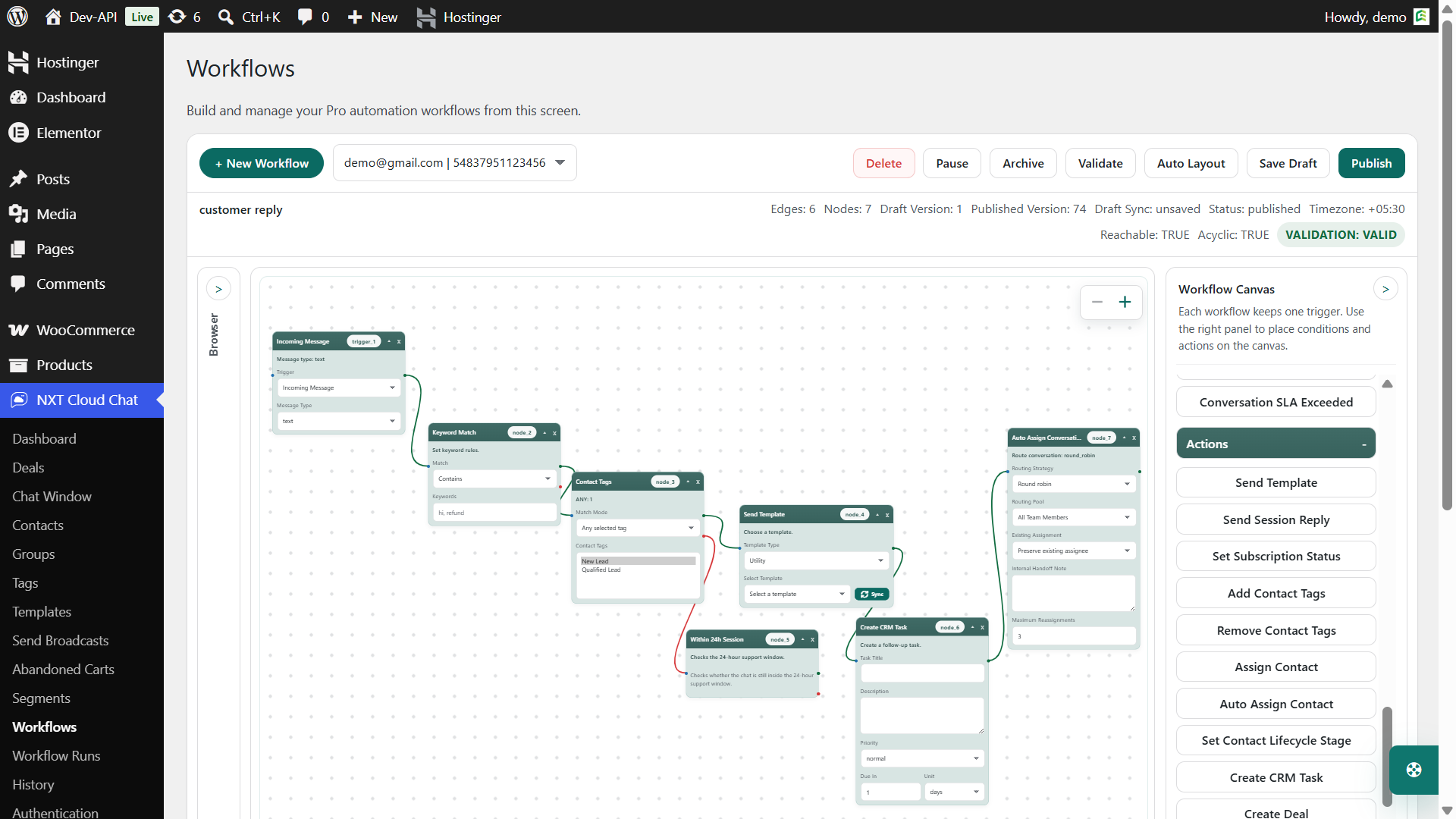
Most WooCommerce order updates should use Utility templates because they are related to a transaction the customer already started.
| Message | Recommended category | Why |
|---|---|---|
| Order confirmed | Utility | The customer placed an order and expects confirmation. |
| Payment received | Utility | The customer needs a payment status update. |
| Order processing | Utility | The order is moving through fulfillment. |
| Order shipped | Utility | The customer needs delivery progress. |
| Order completed | Utility | The transaction status is complete. |
| Reorder offer after delivery | Marketing | This is promotional, even if it is related to a past order. |
A clean rule is this: if the message is necessary to explain the current order, it is usually Utility. If the message is trying to sell more, reactivate the customer, or promote an offer, it is usually Marketing.
Best WooCommerce Order Updates to Send on WhatsApp
You do not need to send a WhatsApp message for every WooCommerce status. Start with the updates that matter most to customers.
1. Order Received
This reassures the customer that their order was successfully created.
Hi {{1}}, we received your order {{2}}. We will notify you when it moves to the next step.
2. Payment Confirmed
This is useful for prepaid orders, subscriptions, license purchases, digital products, and paid bookings.
Payment for order {{1}} has been received. Thank you for your purchase.
3. Order Processing
This tells the customer that the store has started preparing the order. It is especially useful for physical products, custom products, and manual fulfillment workflows.
4. Shipped or Dispatched
If your store uses shipping plugins or custom order statuses, you can plan WhatsApp templates around the stages your customers actually understand, such as shipped, dispatched, out for delivery, delivered, returned, or cancelled.
NXT Cloud Chat Pro supports dynamic WooCommerce order status handling in workflow triggers and conditions, including custom status slugs created by third-party plugins.
5. Cancelled or Failed
When an order fails or is cancelled, a clear WhatsApp update can reduce confusion. Keep the message neutral and helpful, and include the next step if the customer can retry payment or contact support.
How NXT Cloud Chat Handles WooCommerce WhatsApp Messages
NXT Cloud Chat connects WordPress to the official WhatsApp Cloud API. The free plugin handles the core WhatsApp connection, contacts, inbox, CRM basics, and login tools. NXT Cloud Chat Pro adds the advanced WooCommerce messaging and automation features needed for order updates.
- Sync approved WhatsApp templates into WordPress.
- Use WooCommerce order events as workflow triggers.
- Match order status changes, including supported custom statuses.
- Send approved template messages from workflow actions.
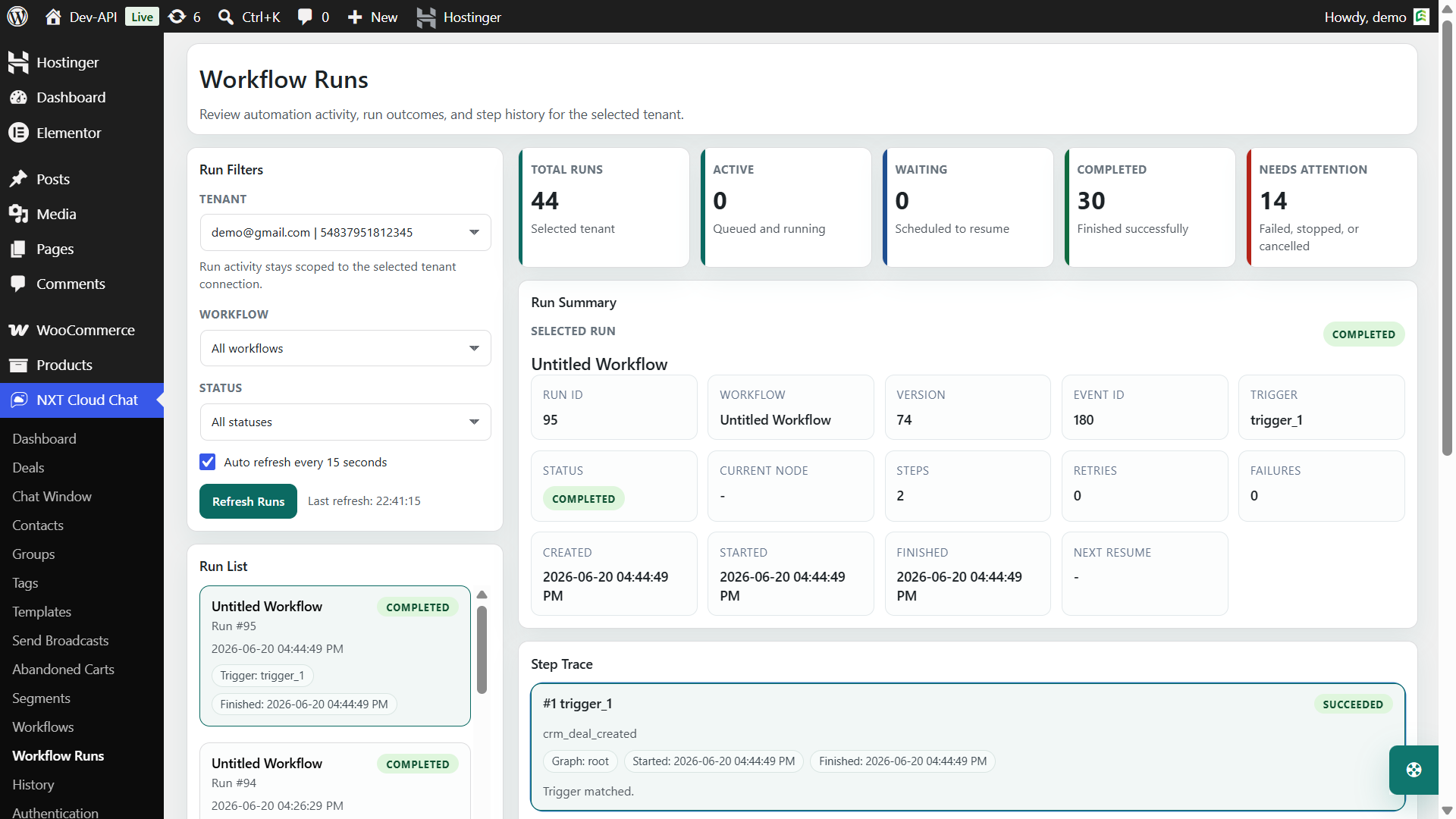
- Use workflow runs to inspect automation execution.
Example Workflow for WooCommerce Order Updates
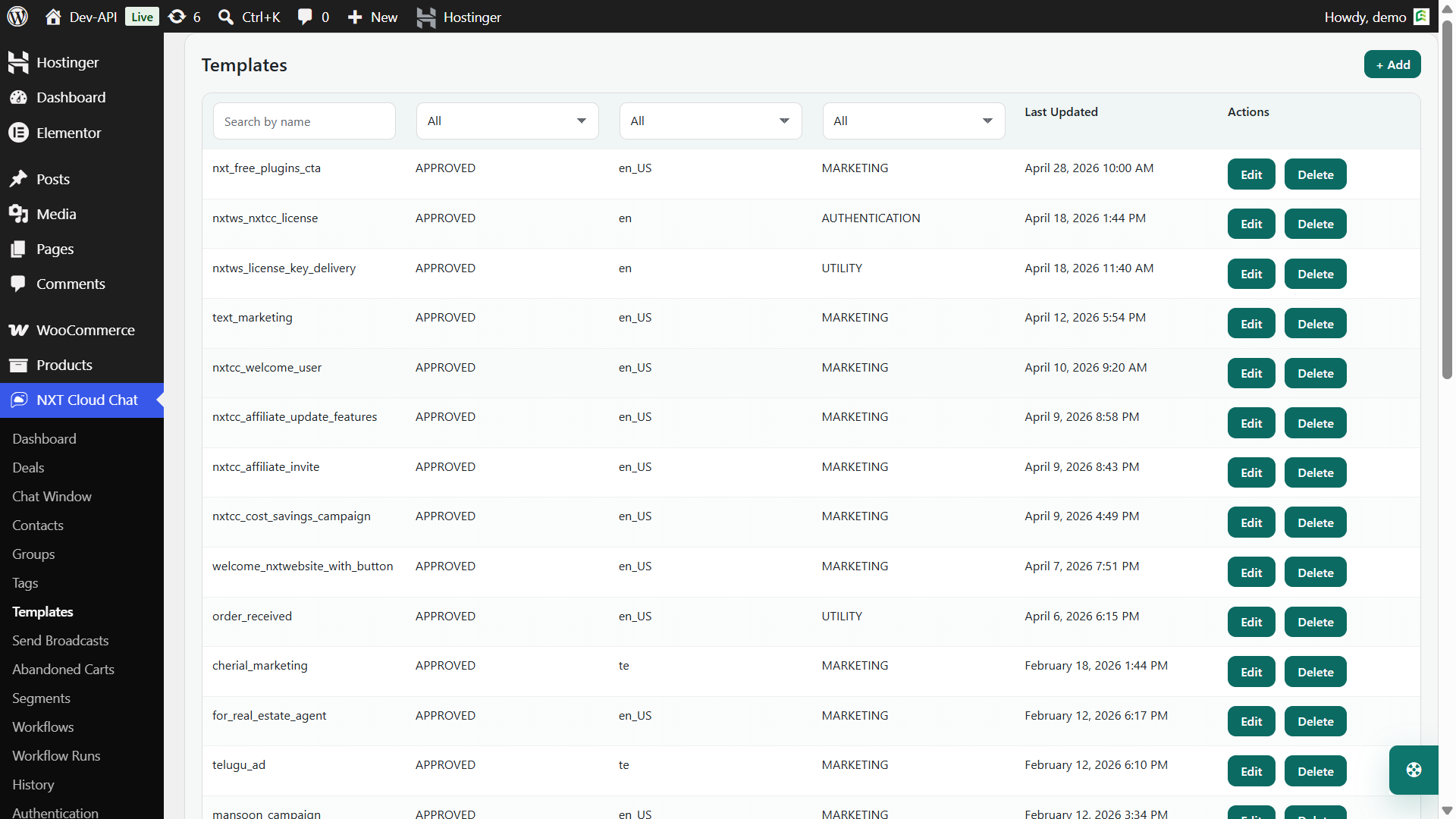
A simple WooCommerce WhatsApp workflow may look like this:
- Trigger: WooCommerce order status changed.
- Condition: New status is processing, completed, cancelled, or your custom shipping status.
- Condition: Contact subscription status is allowed for this message type.
- Action: Send approved WhatsApp template.
- Review: Check workflow runs for delivery and execution status.
This keeps the flow understandable. You can add more conditions later, but your first version should be simple enough to test confidently.
What Variables Should You Use?
Variables make order templates useful. Instead of sending generic messages, you can include the customer name, order number, amount, status, date, or other order-related values available to the workflow context.
| Variable idea | Example value | Use case |
|---|---|---|
| Customer name | Priya | Personal greeting |
| Order number | #1048 | Identify the order |
| Order total | Rs. 2,499 | Payment or confirmation message |
| Order status | Processing | Status update |
| Store name | Your store name | Brand clarity |
Keep variables short. A WhatsApp message should be easy to read on a phone, so do not overload the template with too many details.
Setup Checklist
- Connect your WordPress site to the official WhatsApp Cloud API.
- Create or approve the required Utility templates in Meta.
- Sync approved templates into NXT Cloud Chat Pro.
- Create a WooCommerce order workflow.
- Choose the correct order event or order status condition.
- Map template variables carefully.
- Test with a real order before enabling the workflow for all customers.
- Monitor workflow runs after launch.
Best Practices for WooCommerce WhatsApp Order Updates
- Use Utility templates for transactional updates. Do not mix promotions into important order messages.
- Send only useful updates. Too many messages can feel noisy.
- Use clear order references. Include the order number when possible.
- Test variable mapping. A wrong variable can make a professional template look confusing.
- Separate transactional and marketing flows. Order confirmation and discount campaigns should not be treated as the same message type.
- Watch failed workflow runs. Failed runs can reveal missing phone numbers, invalid templates, connection issues, or incomplete variables.
Common Mistakes to Avoid
- Sending marketing content inside a utility order template.
- Creating too many status messages before testing customer response.
- Using vague messages without an order number.
- Forgetting to sync newly approved templates into WordPress.
- Ignoring custom order statuses created by shipping or fulfillment plugins.
- Not checking workflow run logs after enabling automation.
Why NXT Cloud Chat Is a Good Fit for WooCommerce Stores
NXT Cloud Chat is built for WordPress site owners who want WhatsApp communication inside their website instead of using disconnected tools. WooCommerce order updates become more powerful when templates, contacts, workflows, segments, and logs live in one WordPress admin experience.
With NXT Cloud Chat Pro, you can use approved templates, connect order events to the visual workflow builder, track workflow runs, and build future automation around the same customer record. That makes WhatsApp order communication easier to maintain as your store grows.
To start building WooCommerce WhatsApp order updates, visit NXT Cloud Chat and connect your WordPress site to the official WhatsApp Cloud API.
Frequently Asked Questions
Can WooCommerce send order updates through WhatsApp?
Yes. With the official WhatsApp Cloud API and a WordPress plugin such as NXT Cloud Chat Pro, WooCommerce order events can trigger approved WhatsApp template messages.
Do WooCommerce order updates need WhatsApp templates?
Most business-initiated order updates should use approved WhatsApp templates. Order confirmations, payment updates, and shipping updates are usually handled with Utility templates.
Can I use custom WooCommerce order statuses?
NXT Cloud Chat Pro supports dynamic order status handling in workflows, including custom status slugs used by third-party WooCommerce plugins.
Should I send every order status update on WhatsApp?
No. Send the updates that customers genuinely need. Too many messages can reduce trust and increase opt-outs.
Can NXT Cloud Chat also handle WhatsApp login?
Yes. NXT Cloud Chat supports WhatsApp OTP login for WordPress and WooCommerce, while NXT Cloud Chat Pro adds advanced templates, broadcasts, workflows, WooCommerce automation, and abandoned cart recovery.