WhatsApp templates for WordPress are approved message formats that let your website send important WhatsApp messages through the official WhatsApp Cloud API. They are used for OTP login, WooCommerce order updates, abandoned cart recovery, broadcasts, support updates, and automation workflows.
If your WordPress website only sends manual replies, you will quickly hit limits. Modern customer communication needs approved templates that can be reused safely in login, ecommerce, marketing, support, and CRM workflows.
With NXT Cloud Chat Pro, you can create, edit, manage, sync, and use WhatsApp templates from inside WordPress, while still following Meta’s official approval process and template category rules.
What Is a WhatsApp Template?
A WhatsApp template is a structured message that your business submits for approval before using it for business-initiated communication. A template can include text, variables, a header, footer, buttons, media header options, and language settings.
For example, a WooCommerce store may create an order confirmation template:
Hi {{1}}, your order {{2}} has been confirmed. We will notify you when it moves to the next step.
The values inside {{1}} and {{2}} are replaced when the message is sent. In NXT Cloud Chat Pro workflows, those values may come from the customer, WooCommerce order, abandoned cart, ticket, deal, workflow event, WordPress user, or another supported context.
The 3 WhatsApp Template Categories
For WordPress and WooCommerce sites, the three practical template categories are:
- Authentication – OTP and identity verification messages.
- Utility – order, payment, account, service, and support updates.
- Marketing – promotions, broadcasts, abandoned cart reminders, and reactivation campaigns.
Choosing the correct category is important because it affects approval, pricing, customer expectations, and compliance. The message category should match the real purpose of the template.
| Use case | Best category | Example |
|---|---|---|
| WhatsApp OTP login | Authentication | Login verification code |
| WooCommerce order confirmation | Utility | Order received or payment confirmed |
| Shipping update | Utility | Order dispatched or delivered |
| Abandoned cart reminder | Marketing | Return to checkout reminder |
| Sale announcement | Marketing | Discount or product launch campaign |
Why Create Templates from WordPress?
You can create templates from Meta tools, but WordPress store owners often want the template work closer to the website where the templates will be used. NXT Cloud Chat Pro makes this easier by bringing template management into the WordPress admin area.
- Create new WhatsApp templates from WordPress.
- Edit and manage template content from the plugin screen.
- Sync template status and approval details with Meta.
- Use approved templates in broadcasts, workflows, WooCommerce messages, and abandoned cart recovery.
- Keep templates close to WordPress contacts, CRM, orders, carts, and automation.
How to Create a WhatsApp Template in NXT Cloud Chat
After your WordPress site is connected to the official WhatsApp Cloud API, open the Templates screen in NXT Cloud Chat Pro. This screen is where you can manage template creation, editing, syncing, and usage from WordPress.
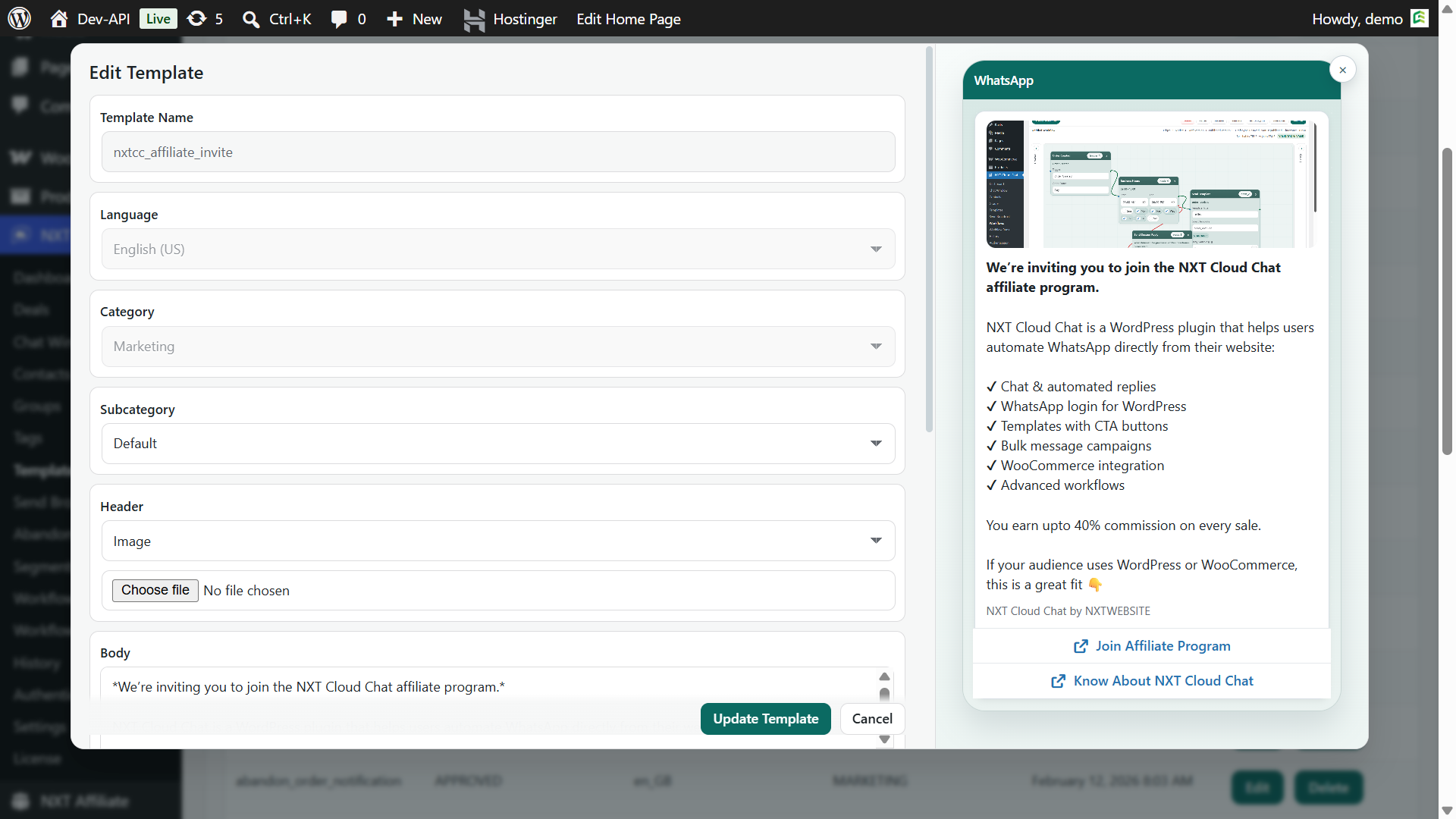
- Open WordPress admin. Go to the NXT Cloud Chat Pro Templates menu.
- Create a new template. Choose the template category, language, name, and message structure.
- Add the body text. Write the main message and add variables such as
{{1}},{{2}}, or the supported variable fields for your workflow. - Add optional components. Use a header, footer, media header, or buttons if the message needs them.
- Review the preview. Make sure the message is short, clear, and suitable for WhatsApp mobile screens.
- Save and sync with Meta. The template must still follow Meta’s approval rules before it can be used for live sending.
The cleanest way to work is to create templates around real business events: login OTP, order confirmed, payment received, order shipped, abandoned cart reminder, support update, or customer reactivation.
How to Edit an Existing Template from WordPress
You can also manage existing templates from the NXT Cloud Chat Pro Templates screen. This is useful when you want to update wording, improve clarity, adjust variables, or prepare a cleaner version of a template for approval.
- Open the Templates screen.
- Find the template by name, category, language, or status.
- Open the template for editing or management.
- Review the message body, variables, header, footer, and buttons.
- Save the changes and sync status with Meta.
If a template is already approved, remember that changing template content may require Meta review again depending on the template and approval rules. Do not edit live templates casually. Create a cleaner version when the change is significant.
How Template Sync Works
Template sync keeps WordPress aware of the templates available in your connected WhatsApp Business account. After syncing, NXT Cloud Chat Pro can show template details such as name, category, status, language, and components so you can use the right template in the right module.
- Sync newly approved templates from Meta into WordPress.
- Refresh template status after approval or rejection.
- Make templates available to broadcasts and workflow actions.
- Keep WooCommerce and abandoned cart automation connected to the approved template library.
Using Templates in WordPress
Once templates are approved and synced, NXT Cloud Chat Pro can use them across multiple business modules.
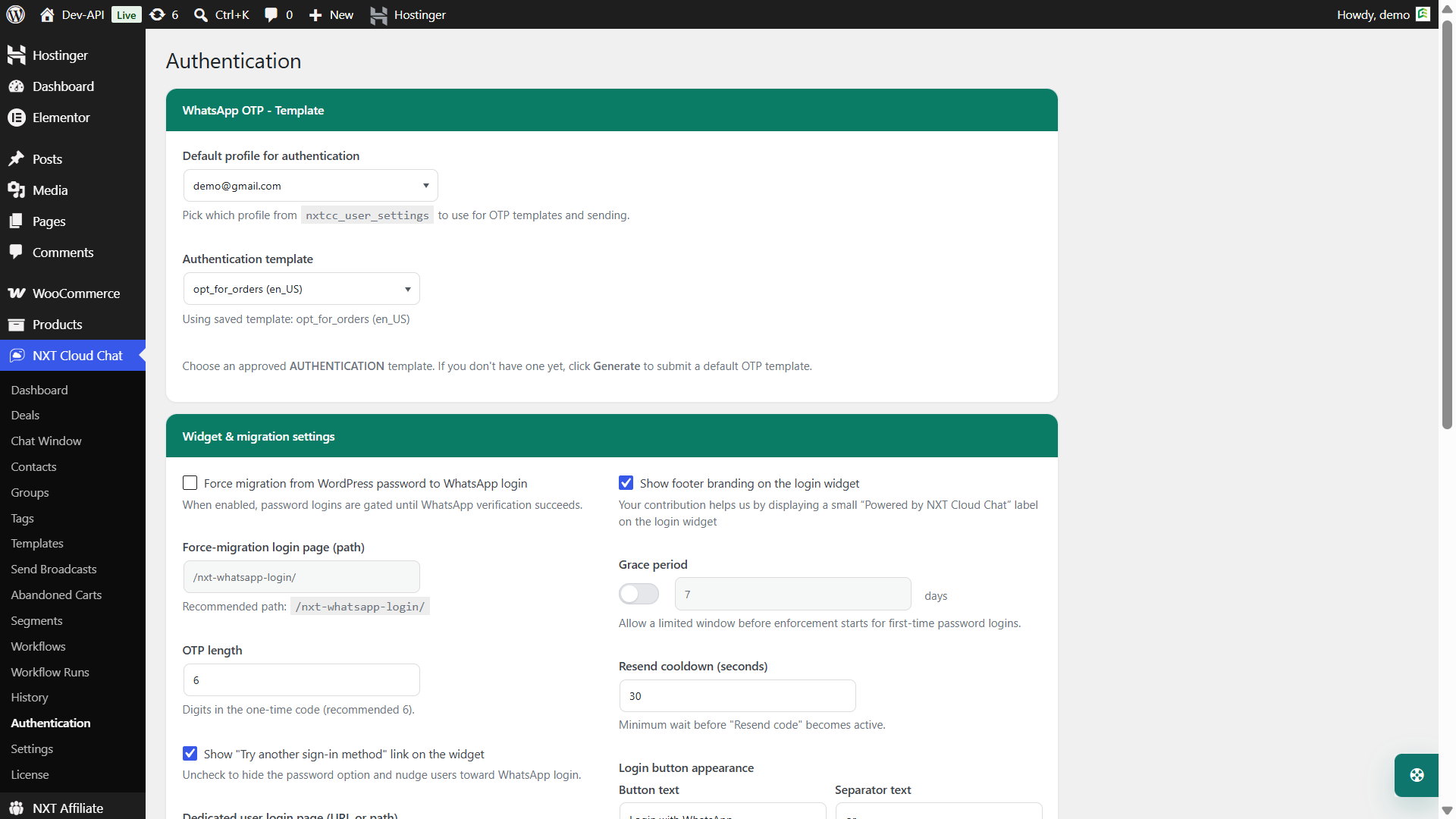
1. WhatsApp OTP Login
Authentication templates can support WhatsApp OTP login for WordPress and WooCommerce. These templates should be short, direct, and only about verification.
2. WooCommerce Order Updates
Utility templates can be used for order confirmation, payment received, processing, shipped, completed, cancelled, failed, or supported custom order status updates.
3. Abandoned Cart Recovery
Abandoned cart reminders usually use Marketing templates. NXT Cloud Chat Pro can track abandoned WooCommerce carts and trigger recovery workflows for eligible subscribed contacts.
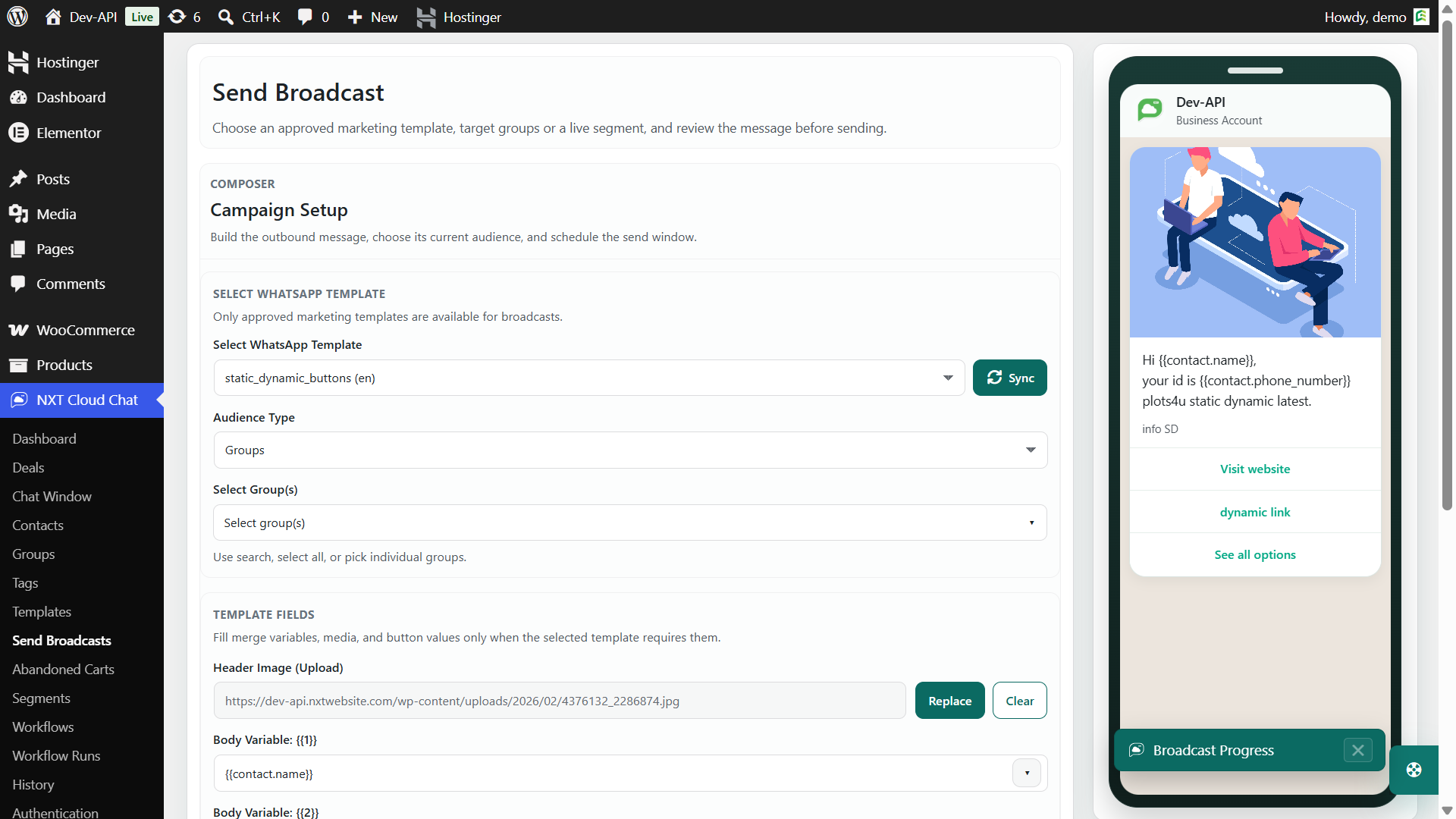
4. Broadcast Campaigns
Approved Marketing templates can be used in Send Broadcasts for selected contacts, groups, or dynamic segments. This is useful for product launches, offers, reorder reminders, and customer education campaigns.
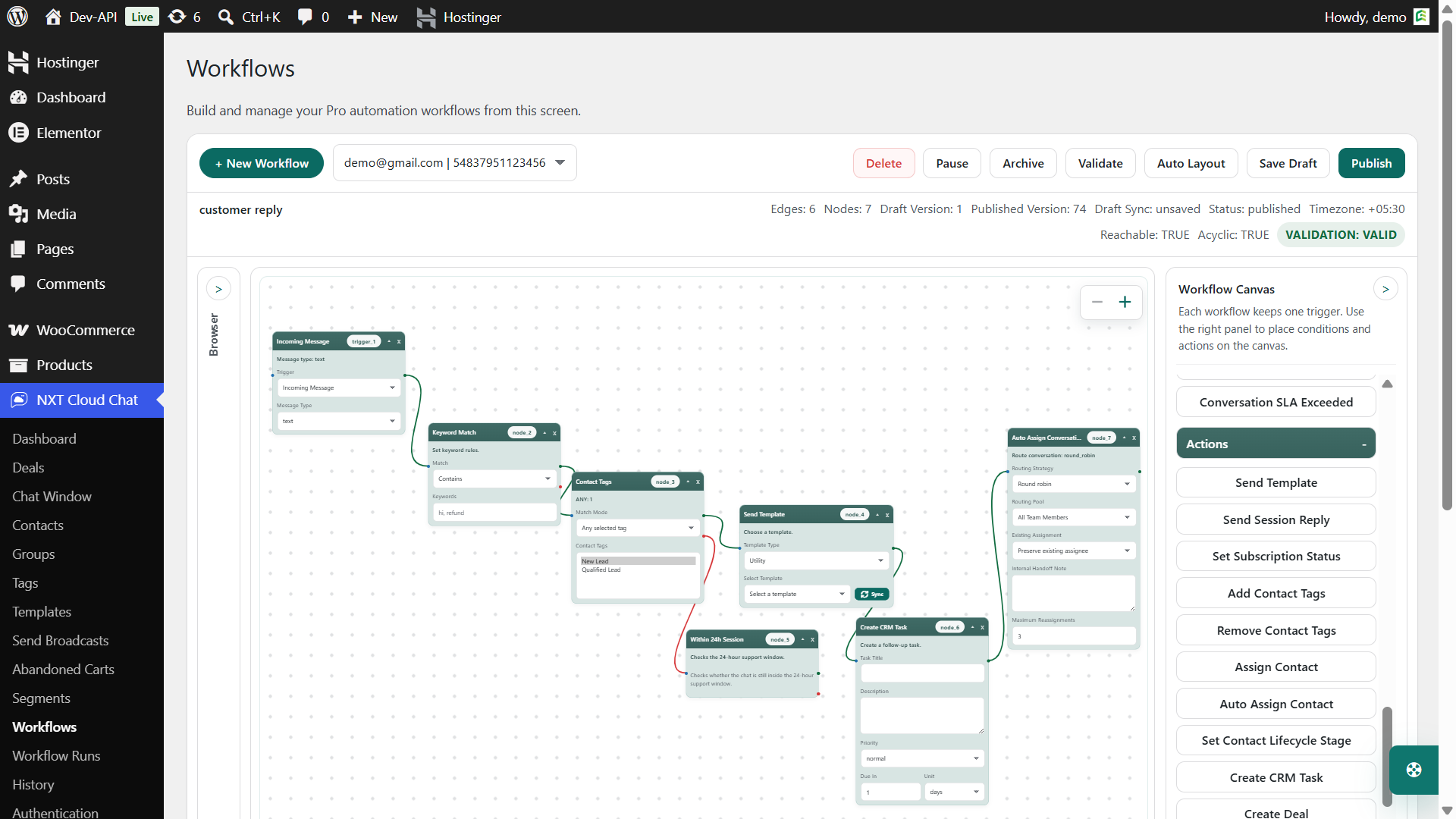
5. Visual Workflows
The NXT Cloud Chat Pro visual workflow builder can send templates based on triggers, conditions, and actions. Workflows can use WooCommerce order events, abandoned cart triggers, incoming messages, ticket updates, CRM events, and compatible integration events.
Template Writing Best Practices
- Write for mobile. Keep the message short and easy to scan.
- Use the right category. Authentication for OTP, Utility for transactional updates, Marketing for promotions and recovery campaigns.
- Keep variables obvious. Use variables for names, order numbers, dates, totals, cart links, and other clear values.
- Avoid mixed intent. Do not add promotional content inside an order update template.
- Test before scale. Send a test message before using the template in broadcasts or automation.
- Respect subscription status. Marketing templates should only go to eligible contacts.
Example Template Plan for a WooCommerce Store
| Template | Category | Where to use it |
|---|---|---|
| Login OTP | Authentication | WordPress and WooCommerce login |
| Order confirmed | Utility | WooCommerce order workflow |
| Payment received | Utility | Payment confirmation workflow |
| Order shipped | Utility | Shipping or custom order status workflow |
| Cart reminder | Marketing | Abandoned cart recovery workflow |
| Product launch | Marketing | Broadcast to subscribed segment |
Common Mistakes to Avoid
- Creating one generic template for every message type.
- Using Marketing content inside Utility templates.
- Adding too many variables and making the message hard to understand.
- Forgetting to sync after template approval or changes.
- Using templates in broadcasts before testing on a real phone.
- Sending marketing templates to unsubscribed contacts.
Why NXT Cloud Chat Pro Helps
NXT Cloud Chat Pro makes template management more practical for WordPress businesses. Instead of creating a template in one place, copying details into another tool, and manually connecting it to WooCommerce or automation later, the Templates module keeps creation, editing, sync, and usage closer to your WordPress workflows.
For WooCommerce stores, that means approved templates can be used in order updates, abandoned cart recovery, broadcasts, and automation. For WordPress membership, service, or support websites, templates can support login, CRM follow-up, ticket updates, and customer communication.
If you want to manage WhatsApp templates directly from WordPress, NXT Cloud Chat Pro gives you a cleaner template workflow connected to your website data.
Frequently Asked Questions
Can I create WhatsApp templates from WordPress?
Yes. NXT Cloud Chat Pro lets you create and manage WhatsApp templates directly from WordPress, then sync template status and details with Meta.
Can I edit WhatsApp templates from WordPress?
Yes. You can manage and edit templates from the NXT Cloud Chat Pro Templates screen. If the template is already approved, major content changes may require Meta review again.
Do templates still need Meta approval?
Yes. Creating a template from WordPress does not bypass Meta’s WhatsApp Business Platform approval process. Templates must still follow Meta’s category and content rules.
Which template category should I use?
Use Authentication for OTP and login verification, Utility for order or account updates, and Marketing for promotions, broadcasts, abandoned cart recovery, and reactivation messages.
Can templates be used in WooCommerce automation?
Yes. NXT Cloud Chat Pro can use approved templates in WooCommerce order workflows, abandoned cart recovery, broadcasts, and visual automation flows.